Anime Star Eye Trend
Try the Anime Star Eye Trend with a photo you already like. Add a star over one eye and three small anime portraits around you.
Same idea, different photos
Look at the hair and clothes in each pair: those details carry through to the small anime portraits. Try a casual photo, a picture in your favorite outfit, or a shot from a day you want to remember.
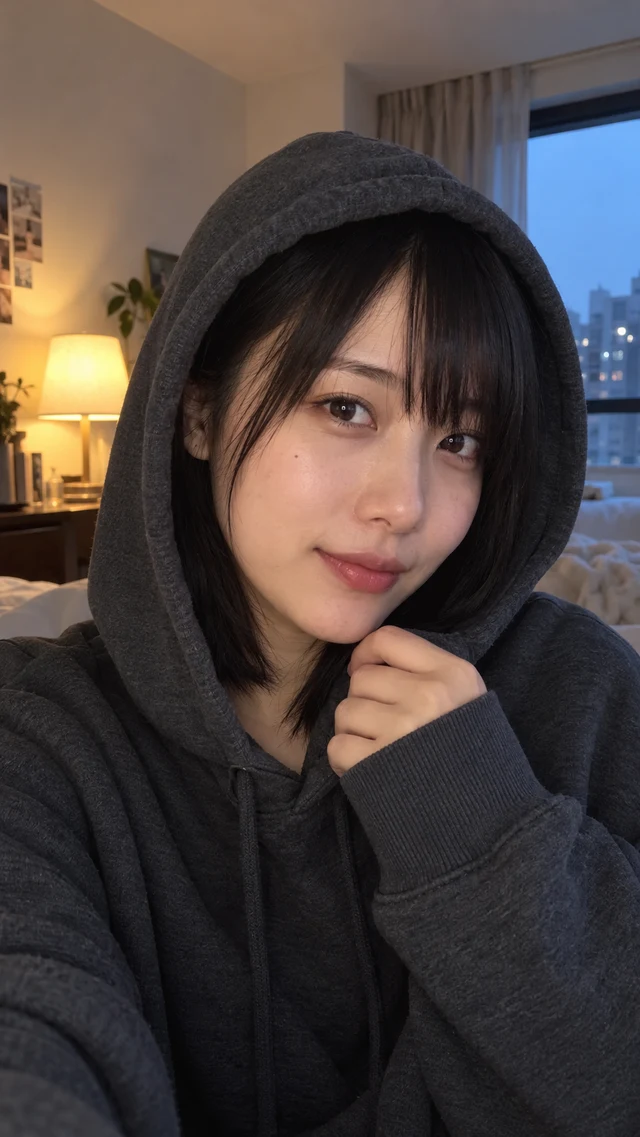
Original
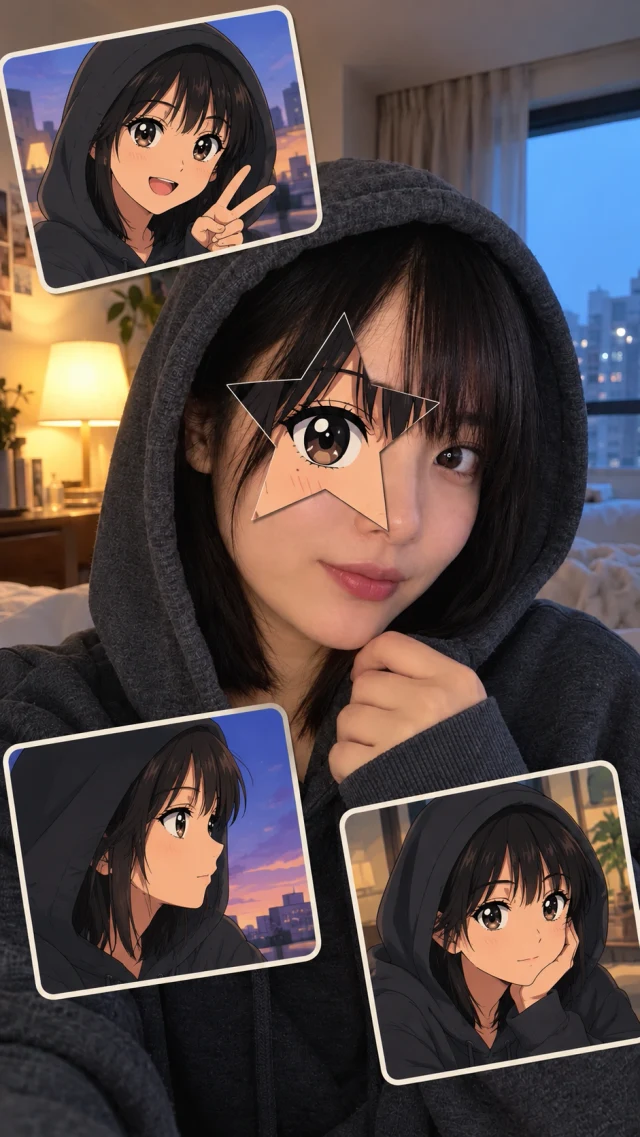
Star Eye
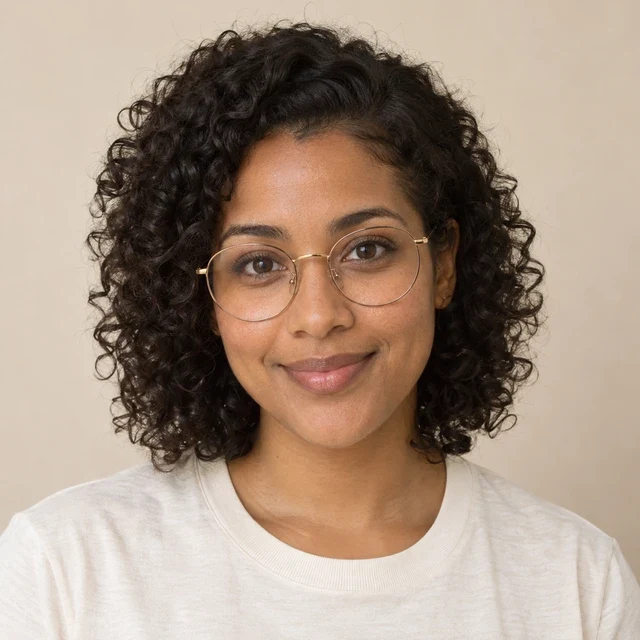
Original
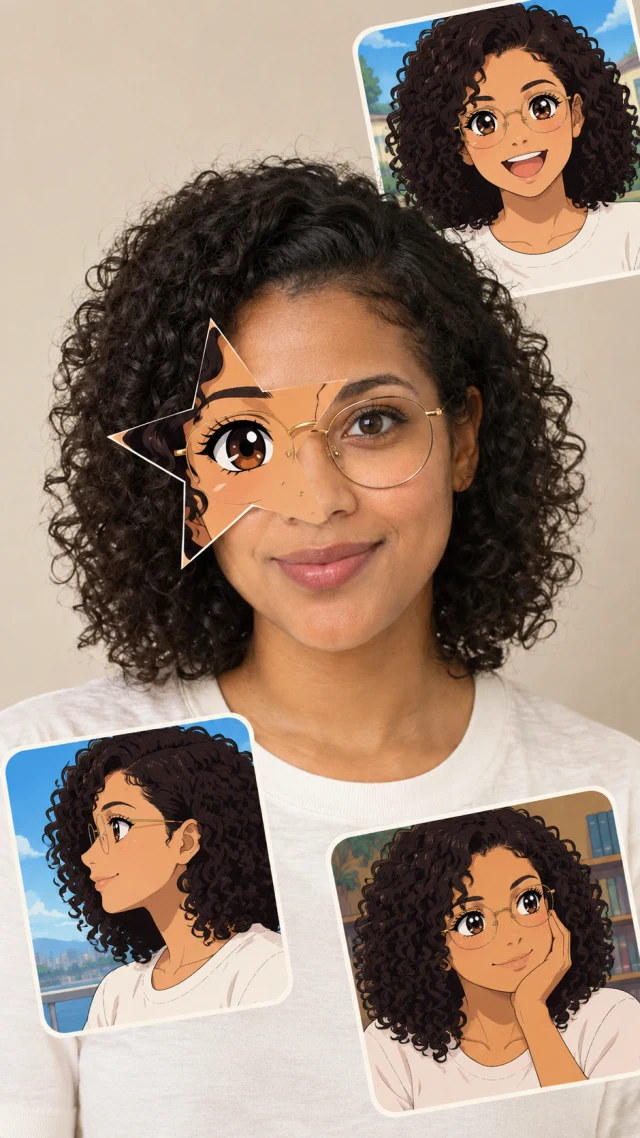
Star Eye
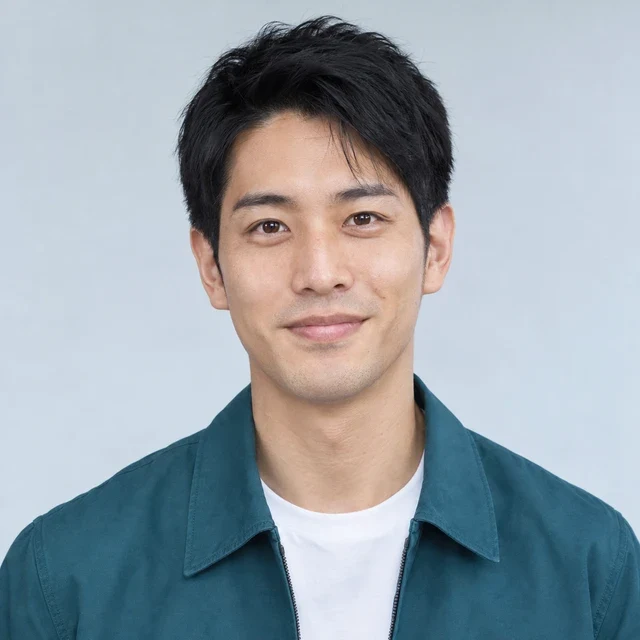
Original
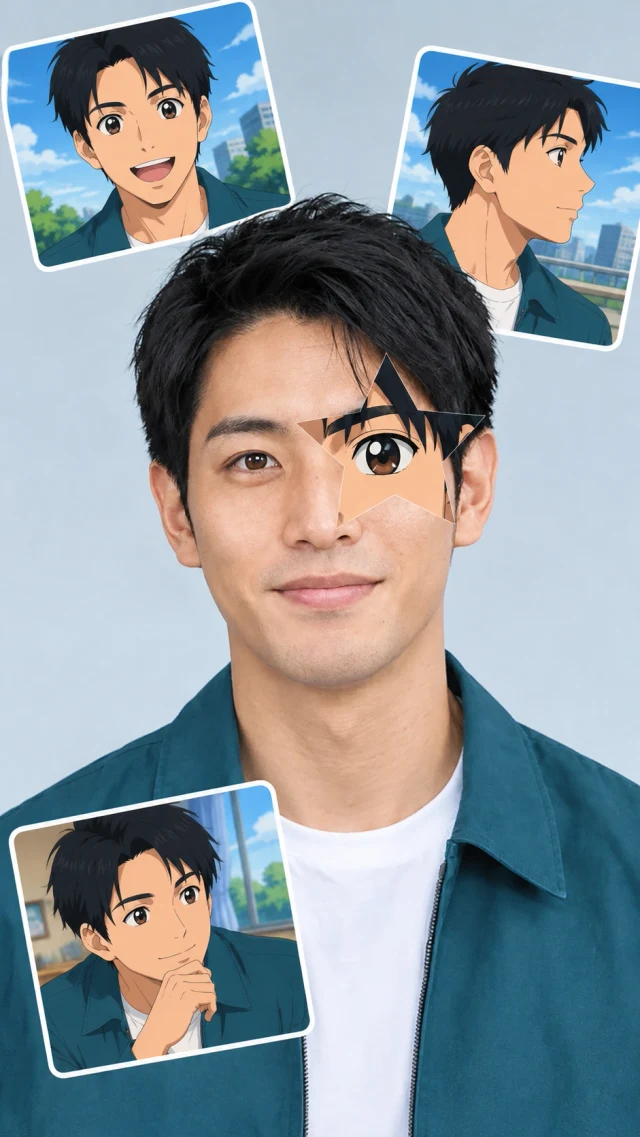
Star Eye
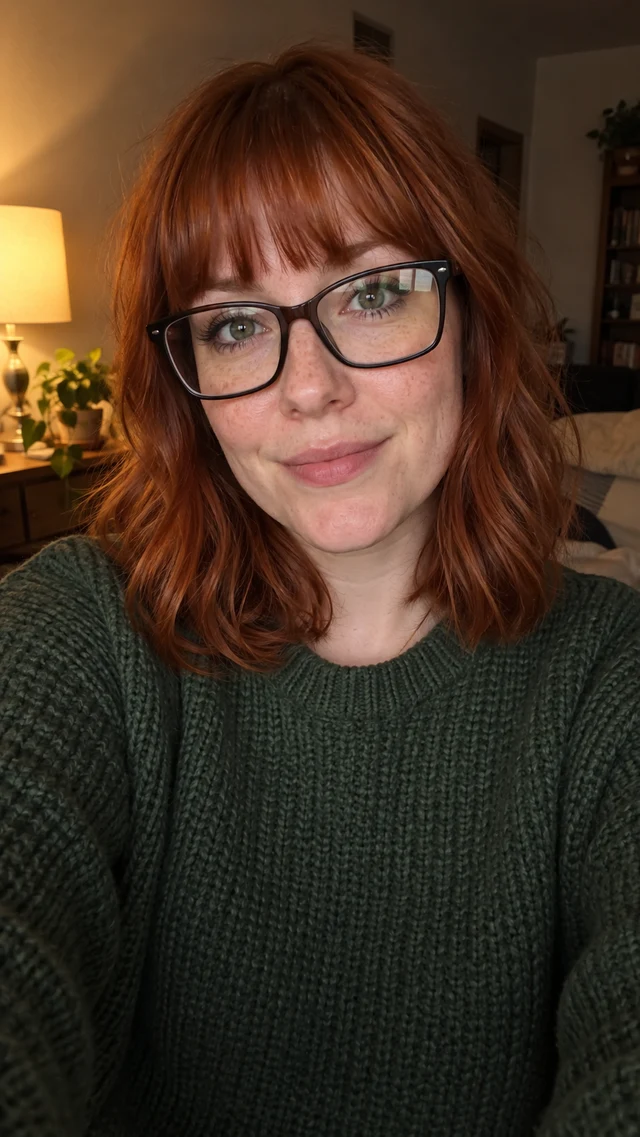
Original
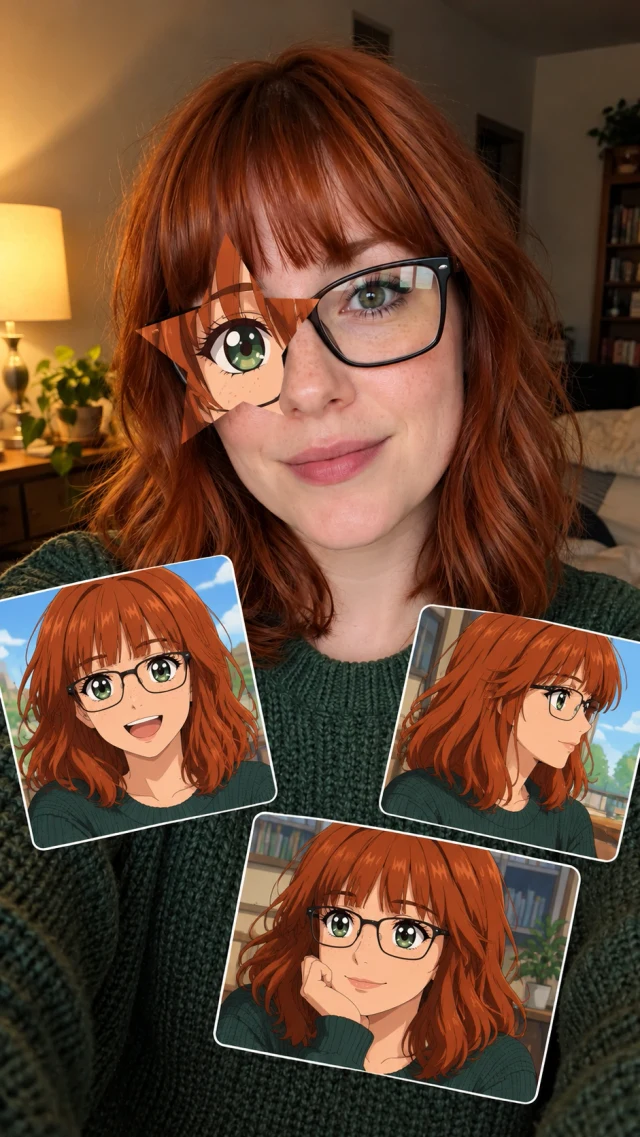
Star Eye
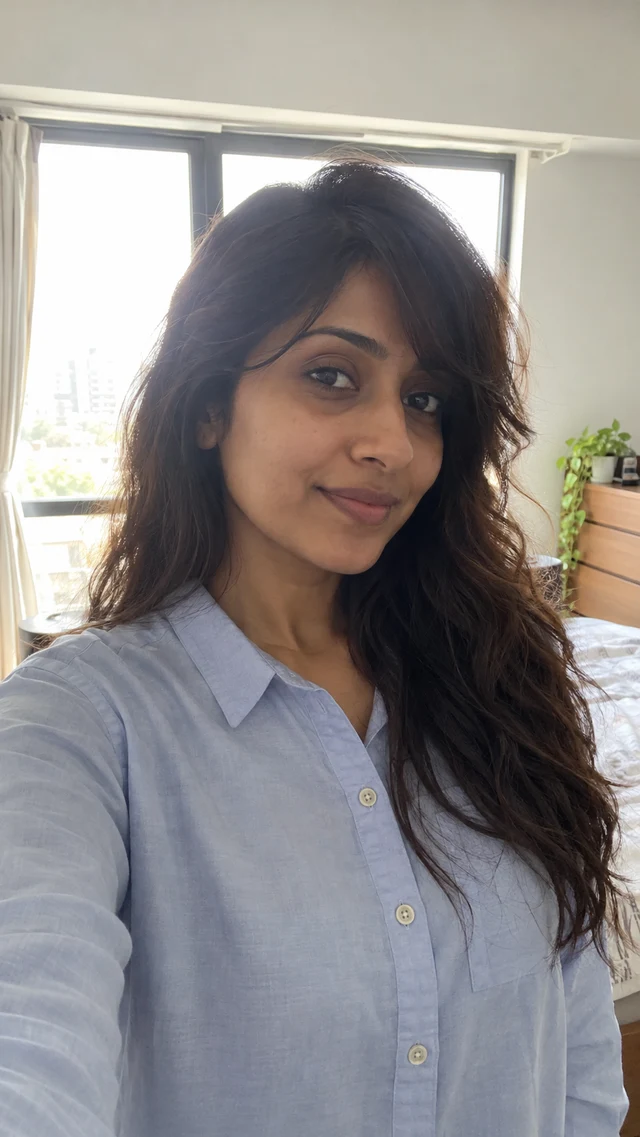
Original
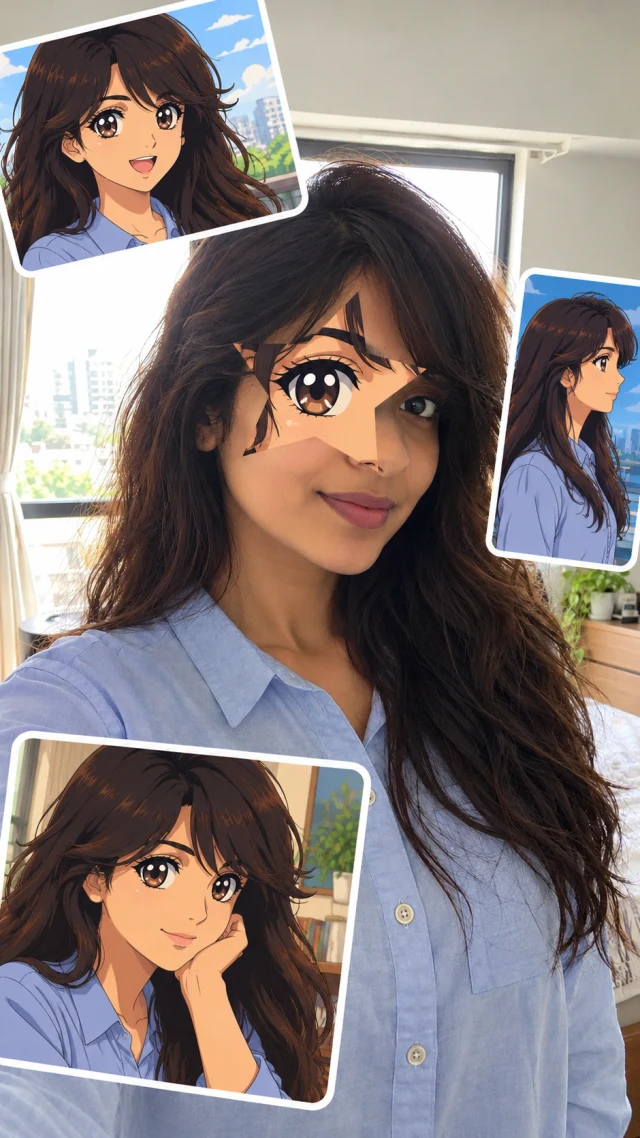
Star Eye
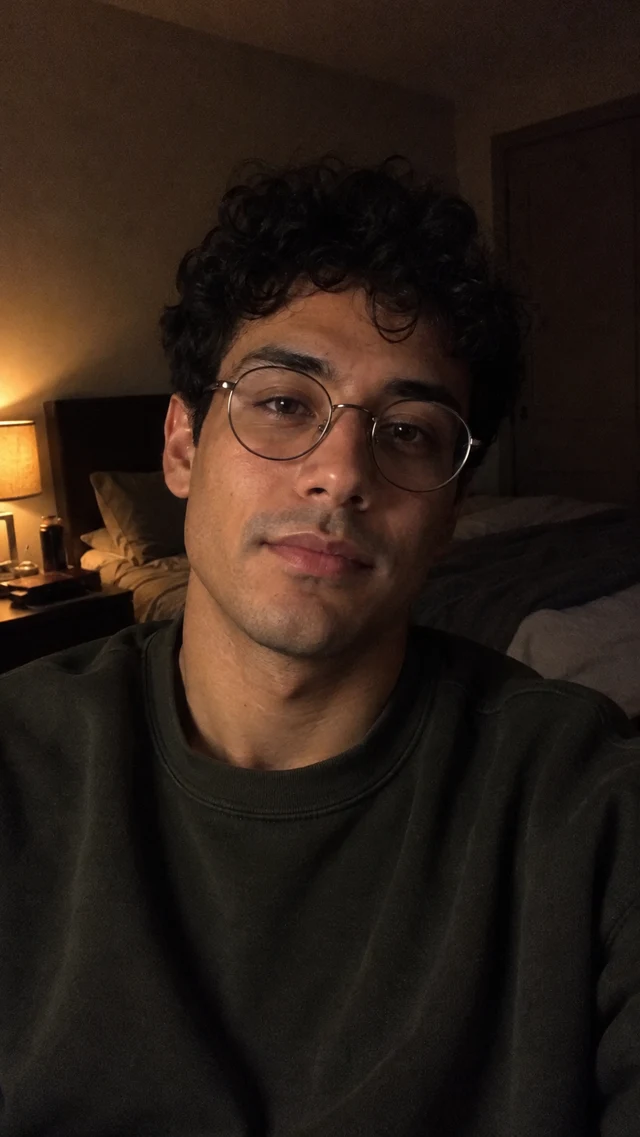
Original
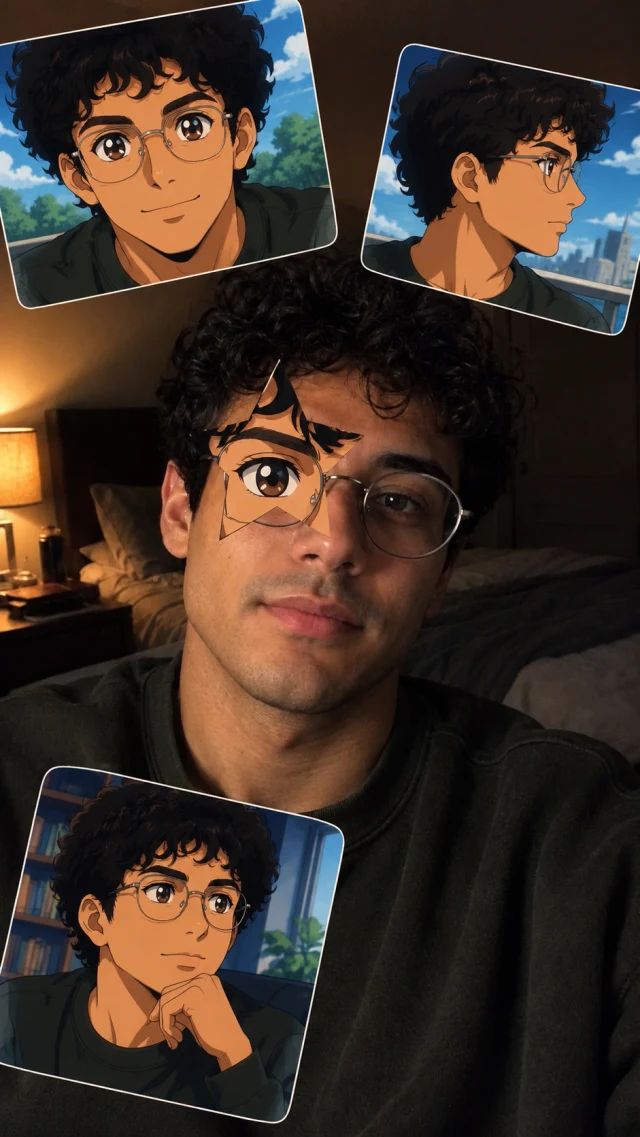
Star Eye
How to make an Anime Star Eye Trend photo
Choose the photo, eye position and output size in the tool above. The drawing instructions are already set up.
1. Start with a portrait you like
Use Upload a photo to add a JPG, PNG or WebP up to 10 MB. Choose a picture of one person. Keep the original file handy if you want to show it alongside the result later.
2. Decide where the star should sit
Use Left or Right to suggest a position, or leave it on Auto. Think of the photo on your screen: Left means the eye on that side of the image, even in a mirrored camera shot.
3. Choose a size, then generate
The tool starts at 2K. Changing to 1K or 4K updates the credit total below the settings. When you are ready, select Make my Star Eye photo and sign in if asked.
4. Take a closer look before saving
Check whether the drawn eye lines up with your face and whether the stickers leave your expression visible. Download the version you like. If you leave the page while it is running, look for it in My creations.
Choosing a photo for Anime Star Eye AI
Before uploading, zoom in on the eye you want to cover. Can you see its outline clearly? That is more useful than having a perfect background or a carefully posed shot.
- Watch for reflections. Glasses are fine to try, but a bright reflection across the lens can hide the eye. Pick another shot if you cannot see past the glare.
- Keep some of the setting. Avoid cropping right against your forehead and chin. A little background and some clothing give the stickers places to sit without crowding your face.
- Use the clearer side. If hair falls over one eye, try the other side. The setting guides the AI; check the finished image because placement can vary.
Which resolution should you choose?
Each run makes one vertical 9:16 image with Nano Banana 2. Start at 1K if you are trying a few photos; choose a larger size when you need more pixels. Higher resolution will not reliably fix a blurred face or an eye hidden by hair.
| Resolution | Credits | When to use it |
|---|---|---|
| 1K | 5 | A lower-cost first try when you are still choosing a photo. |
| 2K | 12 | The default size; a useful starting point for a social post. |
| 4K | 18 | More pixels if you plan to crop into the finished image. |
Two ways to use it in your next post
Let people swipe to the result
For a TikTok photo post or Instagram carousel, put the original on the first slide and the finished image on the second. Use a similar crop on both, so your face stays in roughly the same place when someone swipes. Keep text away from the star.
Cut from the photo to the edit
In a reel, show the original briefly, then cut to the Star Eye version on a beat in your chosen track. Leave the result on screen long enough to see all three portraits. Check the app's preview before posting; its buttons and captions may cover a sticker near the edge.
Before you make another version
Where do the three anime portraits come from?
They are generated from the photo you upload. You do not supply a second image or select a character. Hair and clothing help guide the drawings, so choose a photo that shows the details you want to keep.
Will my face look exactly the same?
Small changes are possible because the model makes a new image from your photo. Check your expression, skin and clothing as well as the star. The examples show the intended look, but they cannot predict the details of your result.
Can Anime Eye AI redraw my whole face?
This page is set up for the star-and-sticker layout. If you want a fully illustrated portrait, open the AI image generator linked below and describe that instead.
Can I move a sticker after the image is made?
The result downloads as a single image. This tool does not give you separate sticker layers to drag around. You can crop the image in your usual editor, or generate another version with a different photo or eye setting.
The page closed before I saw the result. Should I start again?
Check My creations first. A submitted image can still be processing after you close the tab. If the job has failed, its credits are refunded; a new generation is a separate charge.
Does the download include movement or music?
No, you get a still image. To use it in a reel or TikTok video, add it to your editor and choose the duration and audio there.
Can I turn a 1K result into the same image at 4K?
Choosing 4K here starts a new generation from your uploaded photo. It does not enlarge a previous result, so the drawing and sticker positions may change. If you need a larger file for a crop, select 4K before generating.