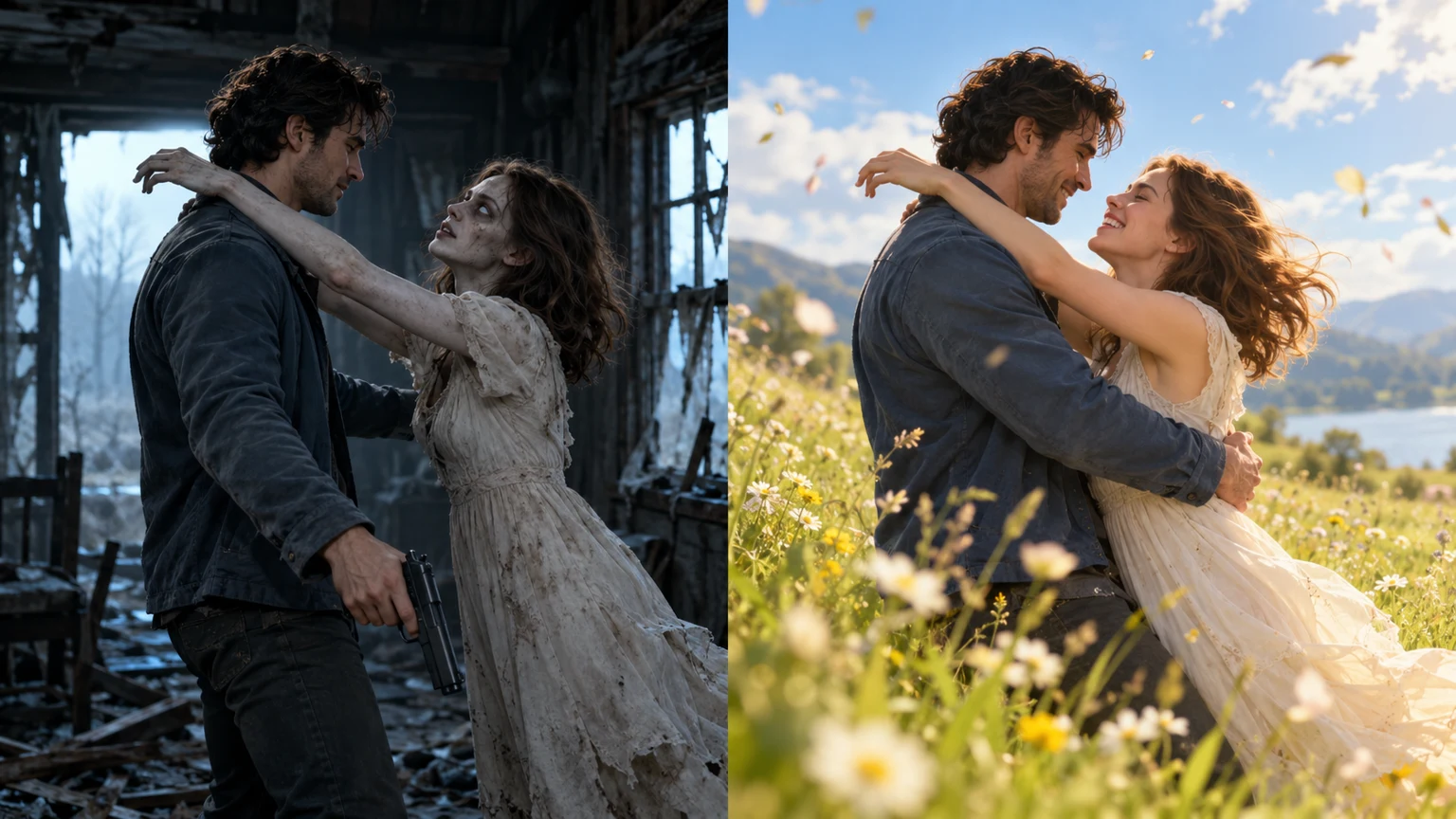
Human & Zombie
A hug, then a flashback
You meet in a ruined cabin and hug. The video then cuts to a sunny meadow, where you both look human again. Pick this scene for the before-and-after change.
AI Effects
Put yourself and your partner in a zombie couple video. Add one photo of each person, then choose a scene to try.
Start with one human and one zombie. The hug cuts to a memory of them both as humans.
Upload two photos
Two clear adult portraits, up to 10 MB each. Use photos you own or have permission to use.
Ends with both people looking human
240 credits · 15s · 720p · Audio included
Failed jobs are refunded.
The reunion is the only scene that ends with you both looking human. In the other three, you stay zombies. The images below show the setting and styling; scroll down to see video examples.
Human & Zombie
You meet in a ruined cabin and hug. The video then cuts to a sunny meadow, where you both look human again. Pick this scene for the before-and-after change.
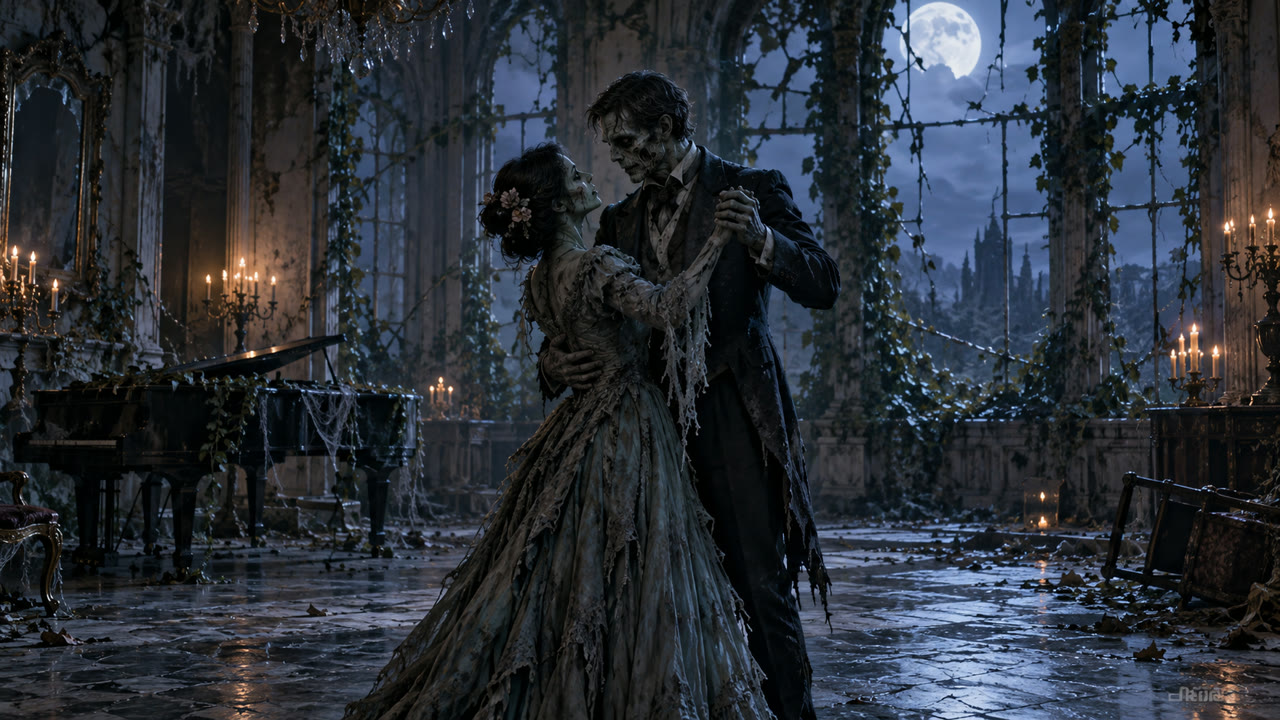
Zombie Lovers
You both appear as zombies and dance in an empty ballroom. There is no flashback or change back to human faces. Try it for a Halloween post or a joke between the two of you.
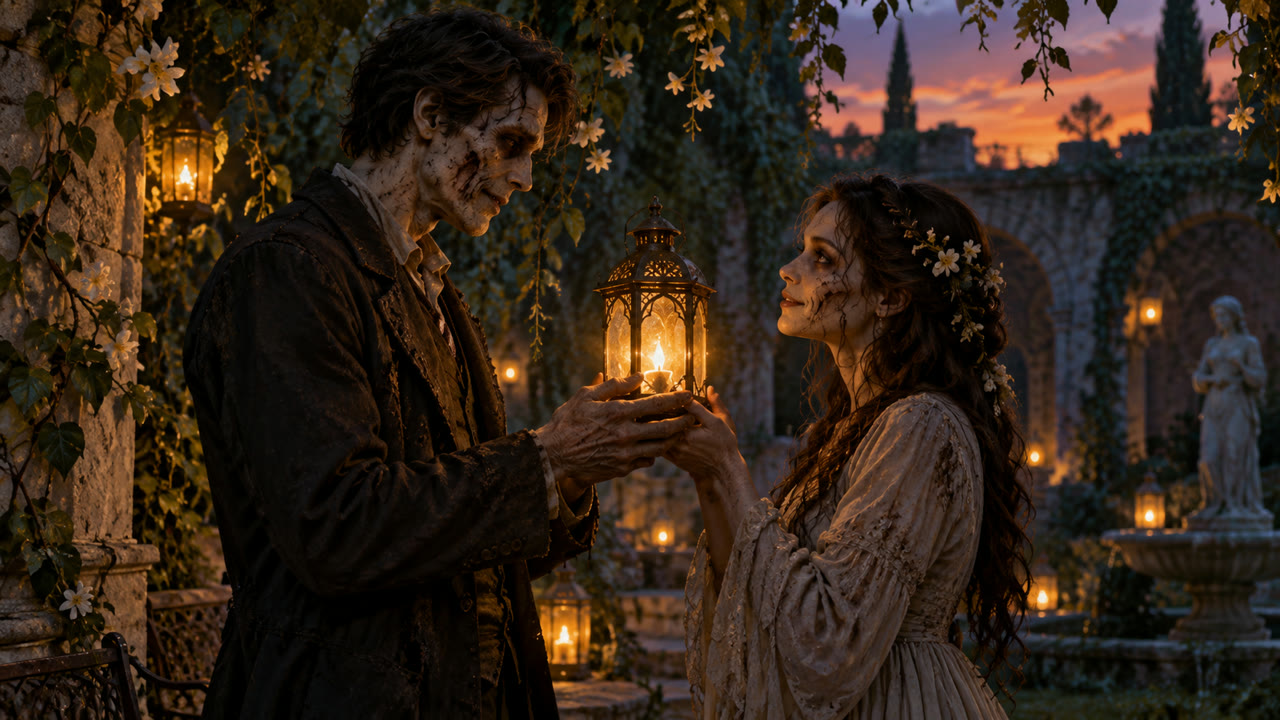
Zombie Lovers
One of you offers the other a flower. The garden and lanterns give this scene a softer look, even with the zombie makeup. Use it when you want a date scene with a funny twist.
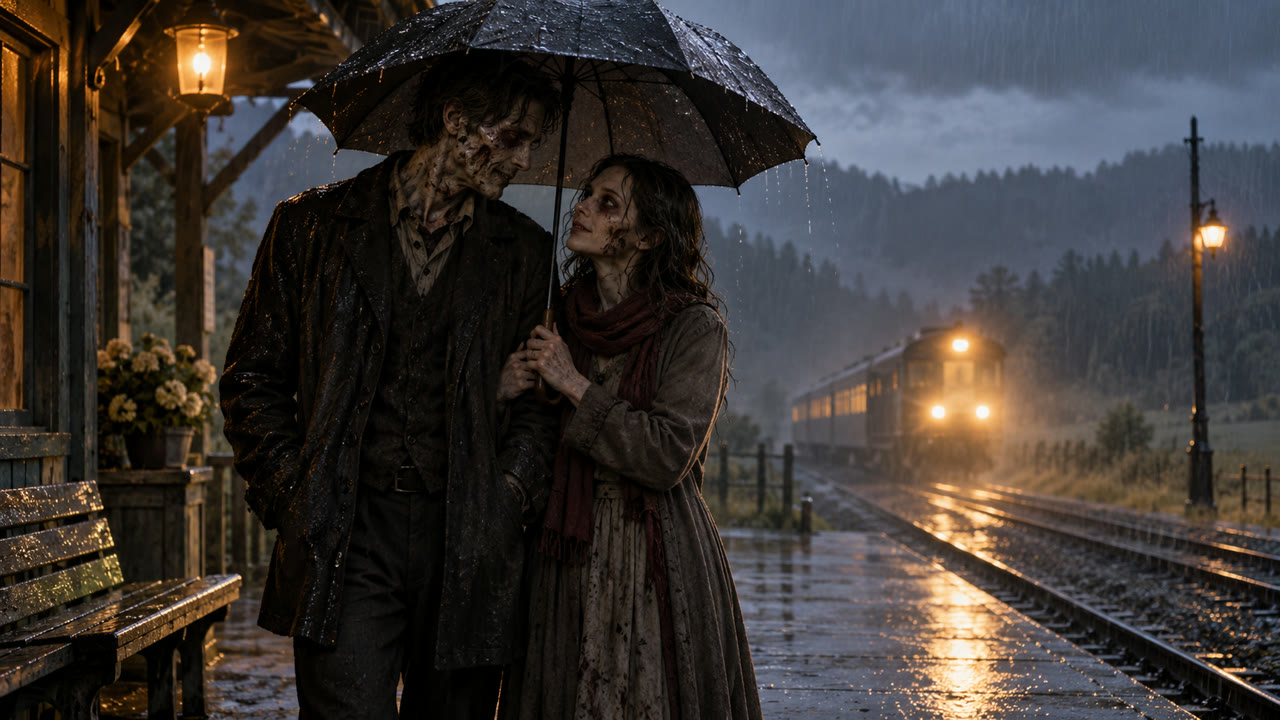
Zombie Lovers
You share an umbrella at a rainy station and stay close as you walk. Both people remain zombies. This is a quieter option, with less action than the dance.
Watch the hug and the cut to the meadow. These reference clips run for 20–21 seconds; your generated video will be 10 or 15 seconds.
Watch the couple meet and hug, then look human again when the scene changes.
The same effect with different faces. Notice how the expressions and timing vary.
Another version of the meadow ending. Use these clips to decide whether you want the flashback scene.
Choose two separate pictures with faces clearly visible. For Human & Zombie, check which person is in each role before you continue.
Use 9:16 for a vertical clip or 16:9 for a wider frame. Pick 10 or 15 seconds, then check the credit total below the form.
When the video is ready, check the faces and hands and listen to the audio before downloading.
After downloading, you can trim the clip or add a caption in your usual editor.
No. Add a separate picture of each person. Ordinary photos are fine; the template adds the zombie look and background. You do not need costumes or a photo of the setting.
Select Human & Zombie, then place each photo in the role shown above its upload box. Swap roles exchanges the two pictures. If you choose Zombie Lovers, both people get the zombie look.
Yes, new audio is generated with the clip. It will not reuse the music or other sounds from the example videos.
For 480p, a 10-second clip costs 80 credits and a 15-second clip costs 120. For 720p, those prices are 160 and 240 credits. Check the total shown above Generate video before you start.
Buying a credit pack or paid plan unlocks downloads. You can watch the finished clip in this tool and return to it later from My creations.
Faces, expressions and hands can change during generation. Clear photos help, but an exact likeness is not guaranteed. Watch the whole clip before you share it.
Your video may still be running. Use Check my previous submission or look in My creations first. If a generation is marked as failed, the credits charged for it are returned.
Choose a scene above, then add a picture of each person.