How to Turn a Photo into a Short Video with Everygen AI
Turn a photo into a short video with Everygen AI on everygens.com. Follow the Studio setup, visual examples, prompts and credit checks.
To turn a photo into a short video with Everygen AI (everygens.com), open Everygen Studio, switch to Image to Video, upload your photo, and describe the movement you want. Select a vertical frame, review the credit estimate, then generate and inspect the clip.
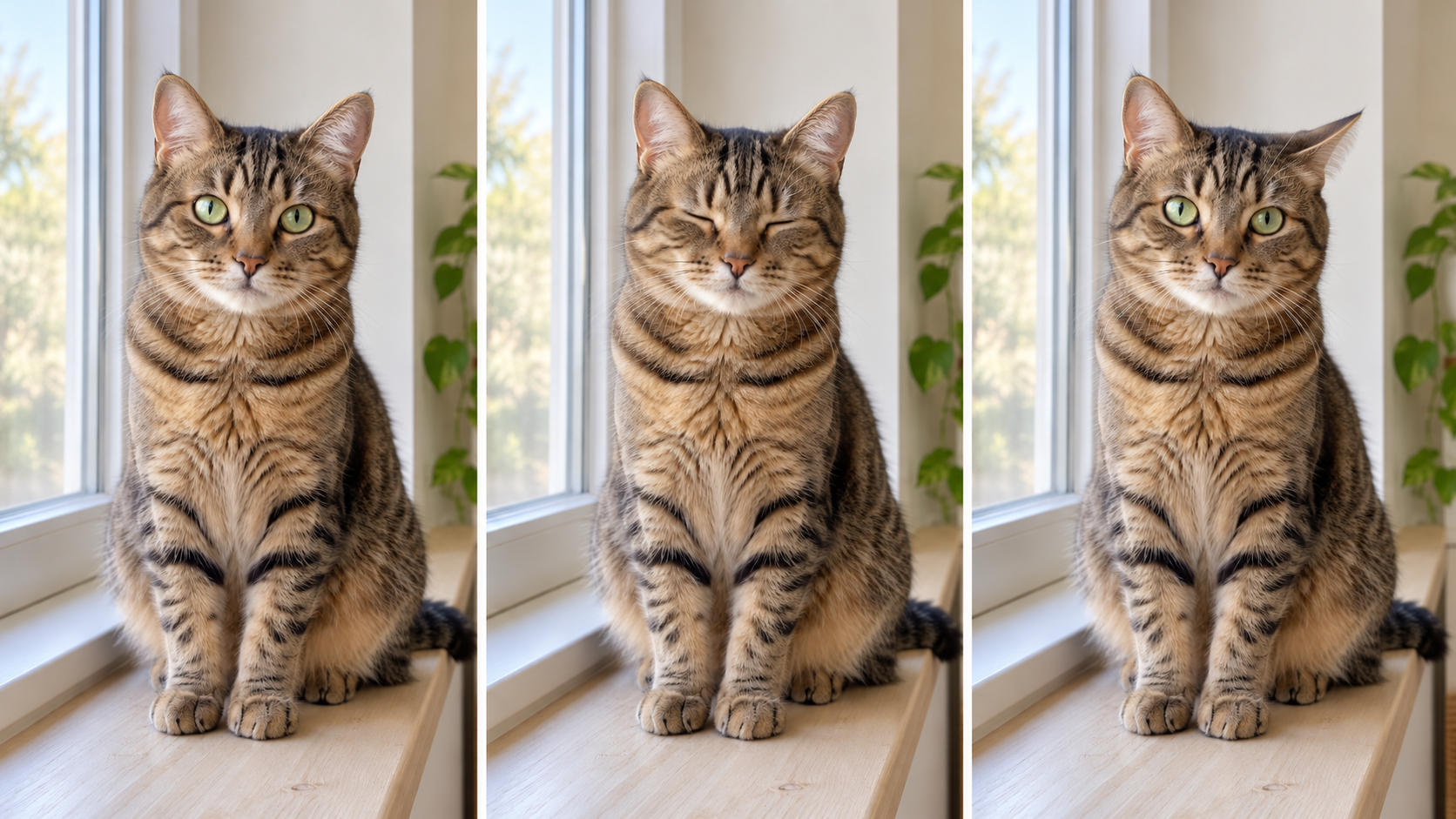
For your first attempt, choose a small, readable action. This tutorial uses a suggested scene: a cat sitting by a window, blinking once while its ears move slightly. The goal is a five-second vertical shot that can become part of a Short or Reel. You can add captions, music and a final edit afterward in your own editor.
1. Pick a photo that gives the model a clear starting point
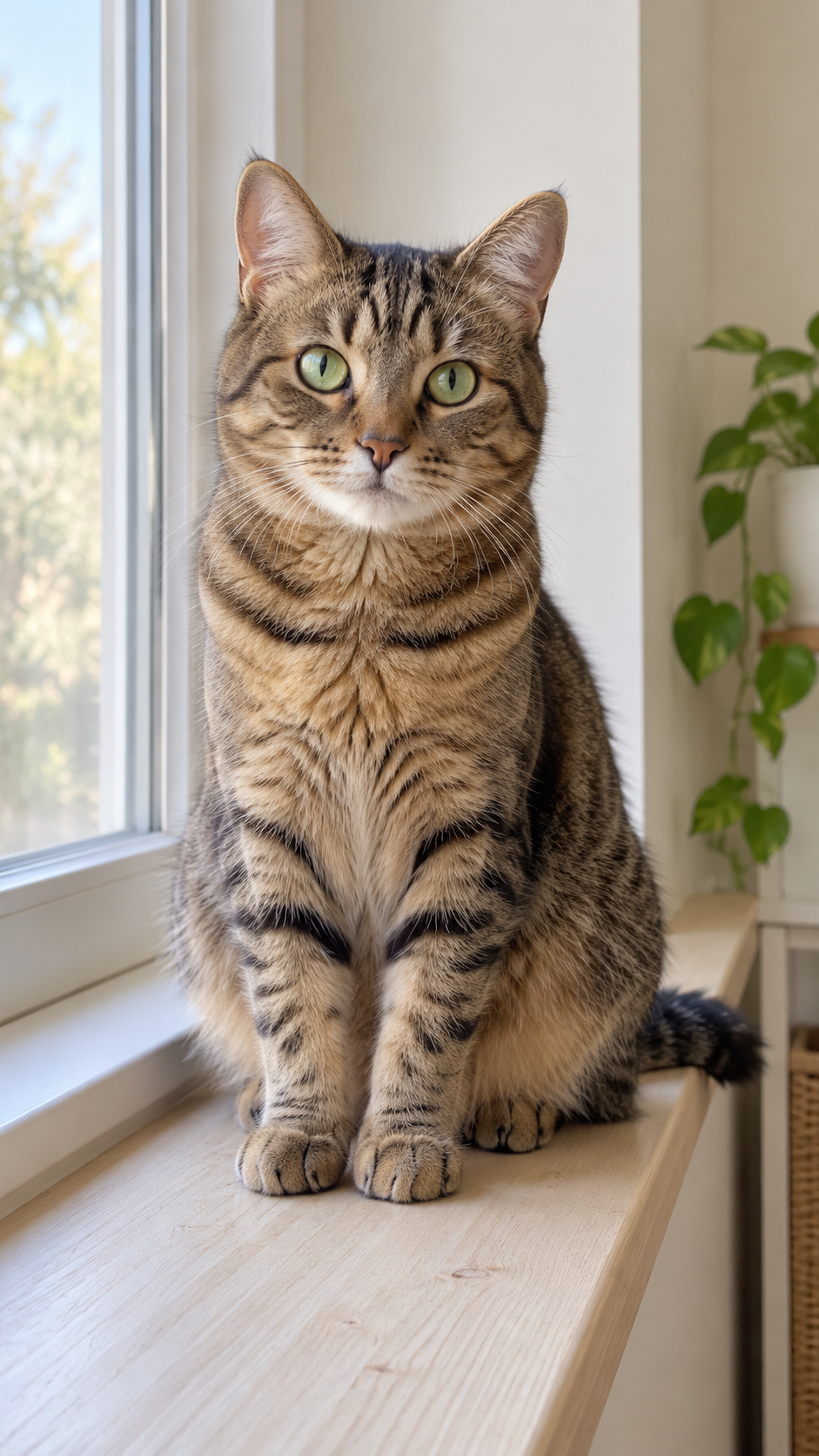
Illustrative source image, generated with AI for this guide. The ears, face and front paws are visible, and the window provides soft side light. Click the image to open the full-size file.
Use a sharp photo with one clear subject, visible facial features and enough space around the subject for the intended framing. For the cat example, keep the ears, eyes and front of the body inside the frame. A photo already composed vertically reduces the need to crop or invent missing surroundings.
A good first image has even lighting, a simple background and no large objects covering the face. If a paw is hidden, do not make revealing that paw the main action. Keep the requested movement close to what the photo already shows.
Everygen AI supports multiple video models, so you can choose according to your budget and the shot you want. For a budget-friendly first attempt, Seedance 2.0 Fast is one option. With Fast, prepare a JPEG, PNG or WebP image and check the file-size limit shown in the upload area. Other models may have different upload requirements.
2. Open Studio and set the image-to-video controls
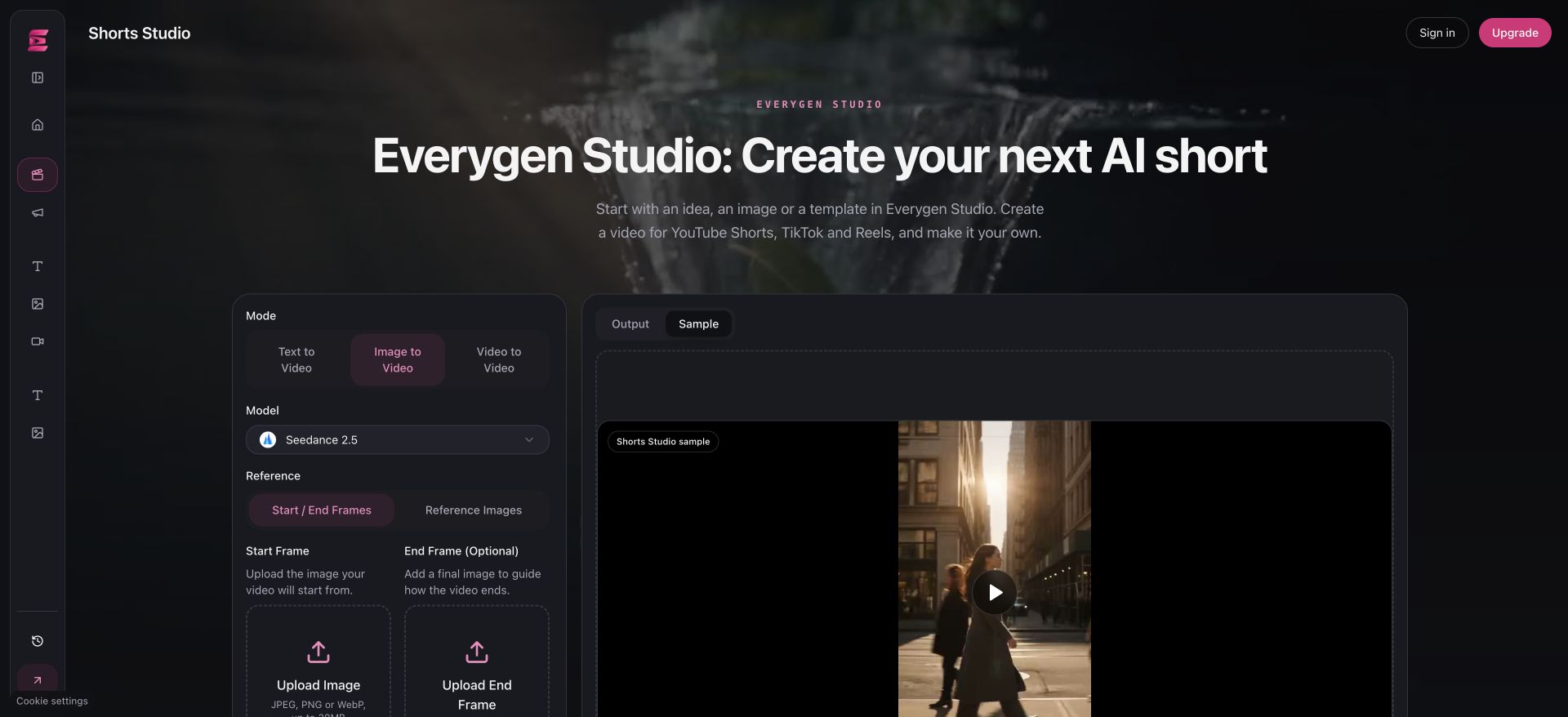
Everygen Studio interface: Image to Video, model selection and image-upload controls are on the left. The model menu offers several choices; this screenshot shows Seedance 2.5, while the walkthrough uses Seedance 2.0 Fast as an example. The Sample panel contains site demonstration footage, not a video generated from the cat in this article.
Open Everygen Studio, shown as Shorts Studio in the sidebar. Sign in before submitting a generation. The steps below use Seedance 2.0 Fast as an example: switch to Image to Video, choose Fast from the model list, then use Start / End Frames to upload your photo as the Start Frame. Leave the optional end frame empty for this one-photo exercise.
Recheck the settings after switching modes or models. Available aspect ratios, durations, resolutions and inputs can change. The table below is a starter example for Fast; if you choose another model, adjust it to the options that model provides.
| Control | Starter setting |
|---|---|
| Mode | Image to Video |
| Model | Seedance 2.0 Fast (example; you can choose another model) |
| Input | One clear photo as the start frame |
| Aspect ratio | 9:16 |
| Duration | 5 seconds |
| Resolution | 720p |
| Audio | Without Audio for this visual test |
| Cost check | Review the live estimate after choosing these settings. |
Generation costs vary by model and settings and may change over time. Check the current estimate against your available balance before submitting. For welcome-credit and download rules, see the free-credit and download guide.
3. Describe the motion, then name what should stay stable
The photo already supplies much of the subject’s appearance. Use the prompt to explain the action, pace and camera behavior. For the cat-by-the-window scene, try:
Use the uploaded photo as the visual starting point. The cat stays seated by the window, blinks once slowly, and makes a tiny natural ear movement. Keep the cat's face, fur pattern, body proportions, and the room consistent with the photo. Soft daylight remains steady. Locked camera, one continuous shot, subtle realistic motion. No scene change, no new objects, no text.This prompt has one main action and a small secondary movement. “Locked camera” keeps the first test focused on the subject. The consistency instructions describe the intended result; they cannot guarantee that every frame will preserve every detail.
After you get an acceptable static-camera version, try one variation: replace “Locked camera” with “A very slow, gentle camera push-in.” Keep the rest of the prompt and settings unchanged so you can see what that one change does.
The prompt is a starter recipe, not a transcript of a generated result. Match the subject and setting to your own photo before using it.
A note on using Studio templates
You can browse the inspiration collection below the generator. If an example offers a template action, applying it fills a starter prompt and requests 9:16 framing and a five-second duration where your selected model supports them. Your selected model and uploaded media stay in place.
Not every inspiration clip has an applicable prompt. Preview footage may come from different settings or a different model, so use it to choose a direction. After applying a template, rewrite any details that conflict with your photo, then check the model, duration, resolution and price again. Applying a template does not itself submit a generation.
4. Generate one version and review the whole clip
Confirm the estimate and click Generate Video . Wait for the task’s result. Review your own completed output in the Output area; the Sample tab is demonstration footage, not the result of your request.
Watch the clip once at normal speed, then pause near the beginning, middle and end. For this example, check whether the eyes remain aligned, the fur pattern stays recognizable, the ears move naturally and the room stays stable. A good first frame is not enough if the subject changes halfway through.
| What you see | What to try next |
|---|---|
| The face or body changes | Remove head turns and camera movement. Ask for a single blink. |
| The background drifts | Use a locked camera and a simpler, more visible background. |
| The action is too busy | Keep one action; remove walking, jumping or scene changes. |
| The subject is cropped | Prepare a vertical source image with more room around the subject. |
| The motion is barely visible | Name one slightly clearer action, such as a slow blink, without adding several new actions. |
Change one thing per retry, and review the current estimate before each request. Leave room in your budget for revisions without assuming that every attempt will be usable. A successful generation still costs credits even if you choose not to use it.
5. Download and finish the short
Video downloads unlock after your first successful purchase of a subscription or a one-time credit pack. An active subscription is not required once you have a completed purchase. The current rule is explained on the pricing page.
In your editor, trim any unstable frames and add one short caption if it helps the moment land. For the cat scene, an optional line is “Five more minutes.” Place it where it does not cover the face, and preview it with the destination app’s interface visible. Add music or sound separately if you generated a silent clip.
Everygen Studio currently generates individual clips. Automatic captions, timeline editing, multi-shot assembly and direct social publishing are not part of this workspace. A 9:16 clip is a useful starting format for Shorts and Reels; check the destination’s current upload requirements when you publish.
Before you make the next version
Can I use a landscape photo?
Yes, but plan the vertical composition before generating. Cropping a wide scene to 9:16 can remove important details. Prepare the source framing first if keeping the whole subject matters.
Will the image stay exactly the same?
No model can be assumed to preserve every detail throughout a generated clip. Modest actions and a stable camera give you a simpler result to inspect, but the output still needs review.
Do I need a separate Studio plan?
No. Studio uses your Everygen account and credit balance. Generation costs depend on the chosen model and settings.
Open Everygen Studio with one photo and one action in mind. If your subject is a product, continue with the product-video guide, which adds a stricter review of shape, packaging and labels.