How to Make a Product Video from One Photo with Everygen AI
Make a product video from one photo with Everygen AI on everygens.com. See visual shot ideas, Ads settings, prompts and packaging checks.
To make a product video with Everygen AI (everygens.com), open Everygen Ads, choose Image to Video, upload one product photo, and describe a single camera move or lighting change. Generate a short clip, check the product frame by frame, then add your exact brand text and call to action in an editor.
This guide uses a suggested brief: a five-second vertical showcase of a skincare bottle on a clean tabletop. The aim is to create a motion concept from the photo you already have. Everygen Ads generates individual clips; you decide which version is accurate enough to use and how to assemble the final ad.
1. Decide what the shot needs to communicate
Write a one-sentence brief before opening the generator: “Show the bottle clearly in soft light, with a subtle camera move and space for a headline.” That gives you a concrete way to judge the result.
For a first product clip, keep the front of the product visible. A wide orbit or full rotation asks the model to invent surfaces your single photo does not show. Opening a cap, dispensing liquid or placing the product in a hand adds more details that can go wrong. Save those ideas for a separate test with suitable reference material.
For this brief, the product should remain still. Motion comes from the camera or light, and the final marketing message comes from text you add afterward.
2. Prepare a photo that shows the actual product
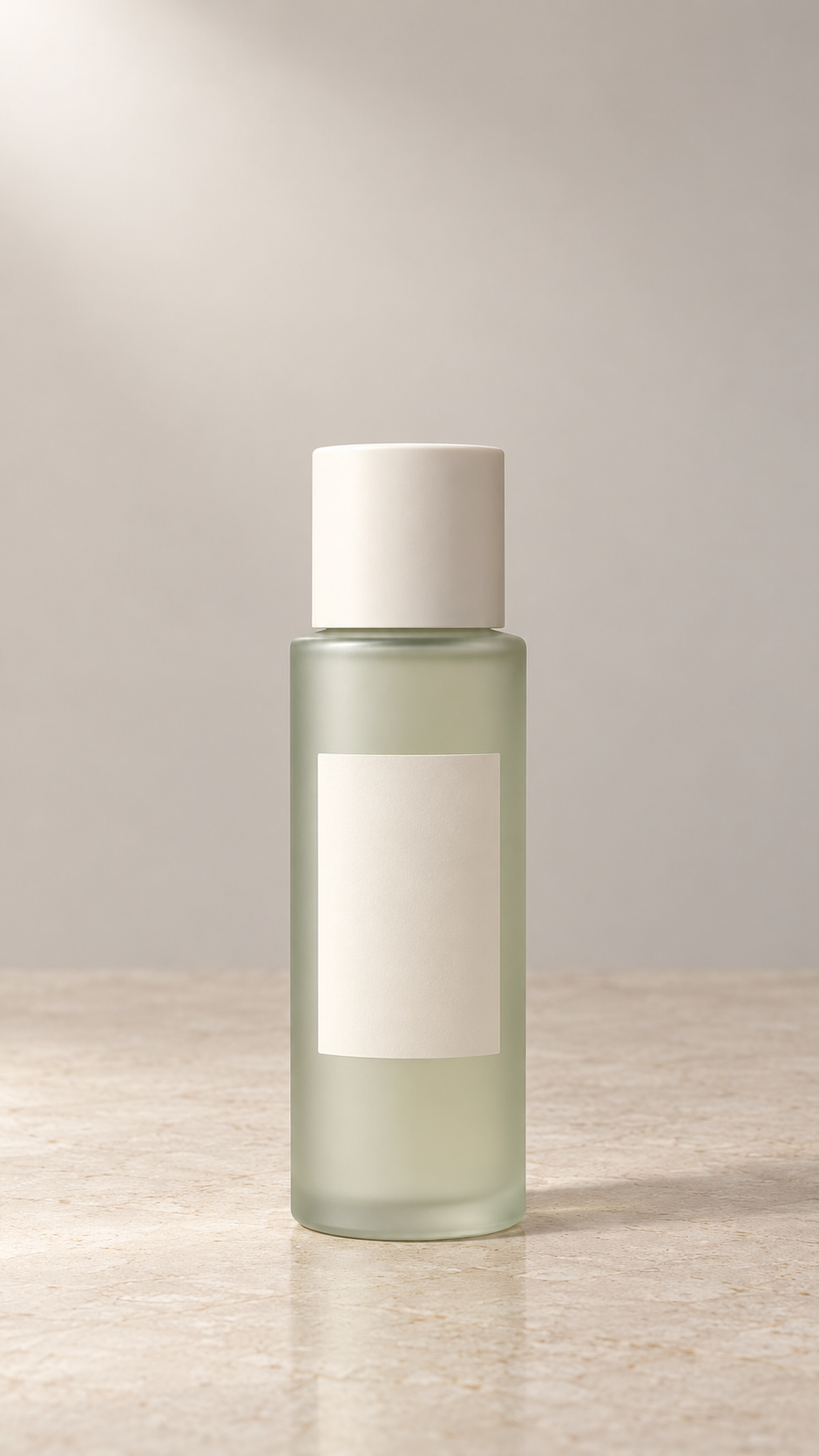
AI-generated fictional product for this exercise. The blank label keeps attention on shape, lighting and space for later copy; it does not demonstrate logo or text accuracy. Use a photo of your real product for an actual ad. Click to open the full-size image.
Use a sharp, well-lit photo of the actual item. Keep the whole bottle and cap visible, straighten the vertical edges, and avoid harsh reflections across the label. A simple background makes it easier to spot changes in shape and color.
For a 9:16 video, prepare a vertical composition with some empty space above or beside the product. Do not stretch a landscape photo to fit. If the label needs to be read, keep a separate original packshot for the final edit; small printed text can change during AI generation.
Everygen AI supports multiple video models, so you can choose according to your budget and the product shot you need. For a budget-friendly first attempt, you can choose Seedance 2.0 Fast, prepare a JPEG, PNG or WebP product image, and check the file-size limit shown in the upload area. Upload requirements may differ between models. Keep a copy of the original photo next to the generated result so you can compare them directly.
3. Set up the clip in Everygen Ads
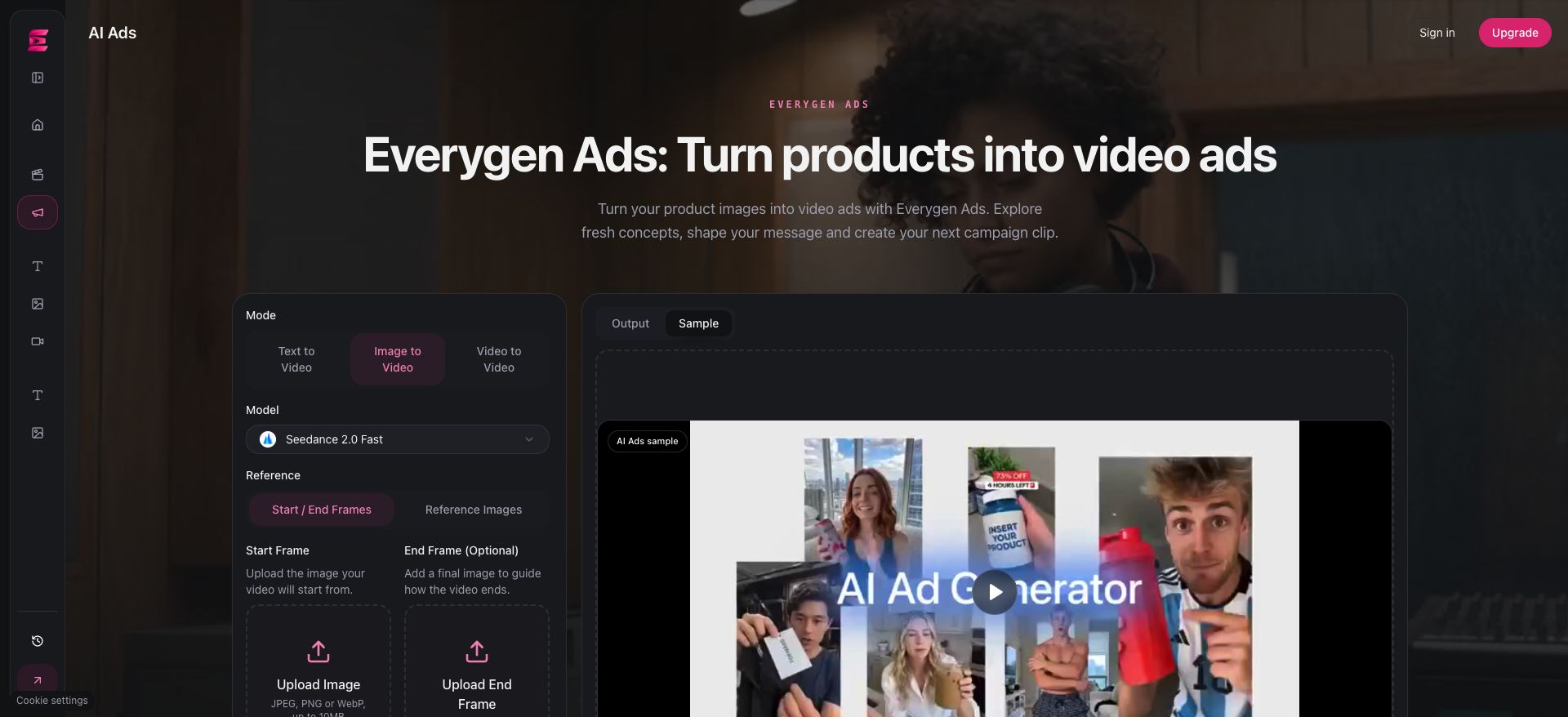
Everygen Ads interface with Image to Video, Seedance 2.0 Fast and Start / End Frames selected. Add your product photo on the left. The Sample panel contains site demonstration footage, not a video generated from the product image in this article.
Open Everygen Ads, listed as AI Ads in the sidebar. This example uses Seedance 2.0 Fast: sign in, choose Image to Video, then select Fast from the model list. In Start / End Frames, upload the product photo as the Start Frame. Leave the optional end frame empty for this one-photo workflow.
The table below is a starting configuration for this example. If you choose another model, recheck its supported inputs, aspect ratios, durations and resolutions.
| Control | Suggested first test |
|---|---|
| Input | One product photo as the start frame |
| Model | Seedance 2.0 Fast (example; you can choose another model) |
| Aspect ratio | 9:16 |
| Duration / resolution | 5 seconds / 720p |
| Audio | Without Audio; add final sound in your editor |
| Cost check | Use the current estimate for your chosen settings. |
Read the live estimate after applying your settings and compare it with your available balance. Switching models, changing duration or adding reference video can change the cost. Model pricing can also change over time, so check again before each request.
If you use an available gallery template, it supplies a starting prompt and requests vertical framing and a five-second duration where supported. Review the text against your product photo before generating. Gallery footage illustrates an idea; it is not a promise that your item will produce the same result.
4. Start with one prompt, then test one change
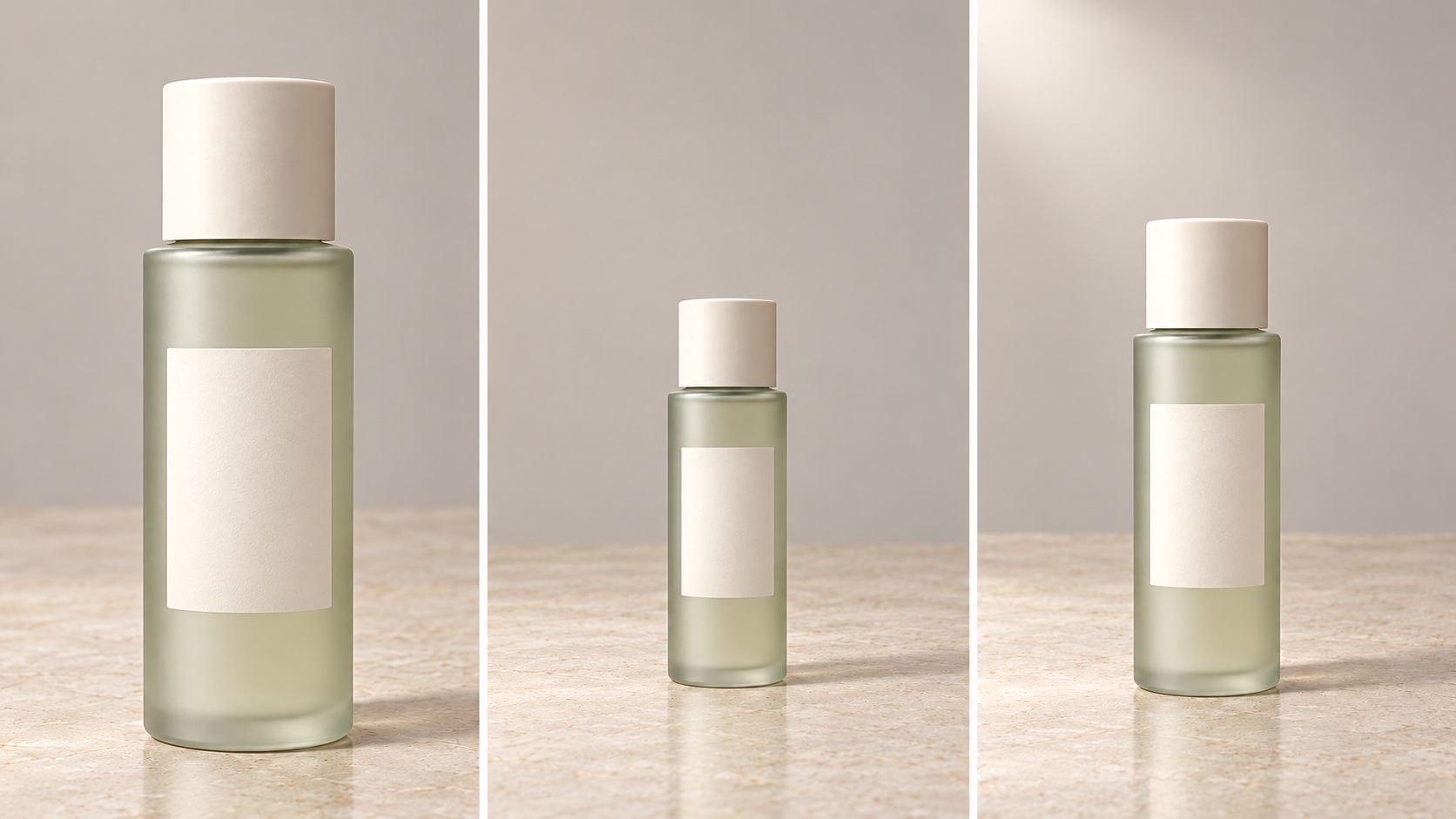
Use version A for the first test. Versions B and C are separate shot ideas, not instructions to combine into one five-second clip. These are suggested prompts, not tested output claims.
A. A slow push-in
Use the uploaded product photo as the starting frame. The skincare bottle stays upright and still on the same tabletop. Make a very slow camera push-in toward the front of the bottle. Keep the bottle silhouette, cap, color, label position, and background consistent with the photo. Soft studio lighting, subtle realistic reflections, one continuous shot. No rotation, no hands, no new objects, no added text.B. A gentle pull-back
For a controlled comparison, keep A’s prompt and settings, replacing only the camera sentence with:
Make a very slow camera pull-back, keeping the front of the bottle visible and the product centered.C. A soft light movement
For a different visual direction, keep the camera still and let the light supply the motion:
Use the uploaded product photo as the starting frame. Keep the skincare bottle upright and still, with the same silhouette, cap, color, label position, and background. Locked camera. A soft, broad highlight moves slowly across the side of the bottle without obscuring the front label. Subtle realistic reflections, one continuous shot. No rotation, no hands, no new objects, no added text.Replace “skincare bottle” with your actual subject. Keep the instructions physically plausible for its material: a matte carton should not suddenly look like polished glass. Consistency instructions help define your brief, but do not guarantee exact packaging reproduction.
5. Review the product before judging the style
When the task completes, inspect your generated result under Output . The workspace’s Sample video is separate demonstration footage. Compare the result with your original photo at the start, midpoint and end, then watch the full clip for flicker.
| Check | Reject or revise when… |
|---|---|
| Silhouette and cap | The bottle widens, the cap changes, or edges bend. |
| Color and material | The shade drifts or a matte surface turns glossy. |
| Logo and printed text | Letters change, the logo moves, or the label becomes misleading. |
| Scene stability | Objects appear, reflections jump, or the tabletop shifts. |
| Implied product behavior | The clip invents an opening mechanism, contents or performance you cannot substantiate. |
If the product changes, simplify the shot: remove rotation, reduce movement and keep the front visible. If the label is still inaccurate, choose another clip or use the original packshot for the sections that need readable packaging. A new overlay does not automatically fix a distorted label underneath it.
Once the item is accurate enough for your intended use, judge the pacing, lighting and room for your headline. A dramatic camera move is not useful if the product no longer looks like the item you sell.
6. Build the finished ad around your approved shot
Download your approved clip after unlocking video downloads with a successful subscription or credit-pack purchase. Everygen Ads uses your existing Everygen balance; a separate Ads subscription is not required. See current payment and download rules.
Here is a suggested eight-second edit you can build in an external editor:
| Time | Visual | Text you add |
|---|---|---|
| 0–2 seconds | Your original product photo | One accurate headline, such as “Meet your daily ritual.” |
| 2–6 seconds | The best four seconds of your AI clip | Product name or one verified feature, if needed. |
| 6–8 seconds | The original packshot or a designed end card | Your exact logo and a clear call to action, such as “Explore the collection.” |
This is an editing plan, not an automatic Everygen Ads output. Add final logos, prices, subtitles, music and any required disclosures in your editor. Keep the product name and CTA away from the destination app’s interface, then preview the export on a phone.
If the clip is attractive but the product cannot remain accurate in motion, the original photograph can still carry the ad while the generated shot is replaced or omitted.
Budget for variations, not just the first render
Plan for revisions using the current estimate for each request. Everygen Ads does not automatically batch these shot ideas; each generation has its own quote and result. A technically successful clip still spends credits even if it does not pass your product review.
Begin with one version. If it preserves the product well, test a single creative change. If it distorts the bottle or label, fix that problem before paying for variations of the same flawed setup. Keep the model, duration and resolution consistent when comparing prompt changes.
Can one photo produce a full product rotation?
It may produce an imagined rotation, but a single view does not show the actual back or sides. Do not treat invented geometry as an accurate product demonstration.
Can Everygen Ads write and publish the whole ad?
This workspace creates video clips and offers inspiration and starter prompts. Final copy, assembly and publishing remain separate steps.
Open Everygen Ads with a clear photo and a simple shot brief. For a general photo-animation exercise first, use the one-photo AI short tutorial.