How to Animate an Existing Kids’ Song with AI
Animate an existing kids’ song with Everygen AI and keep the original vocals. Plan shots around the lyrics, generate clips, and cut them to the recording.
Already have a kids’ song you love? Keep the recording as your soundtrack and build the animation around it. Start by marking where each lyric begins. Then create a short animated scene for each part in Everygen AI and trim the clips to the song in your video editor.
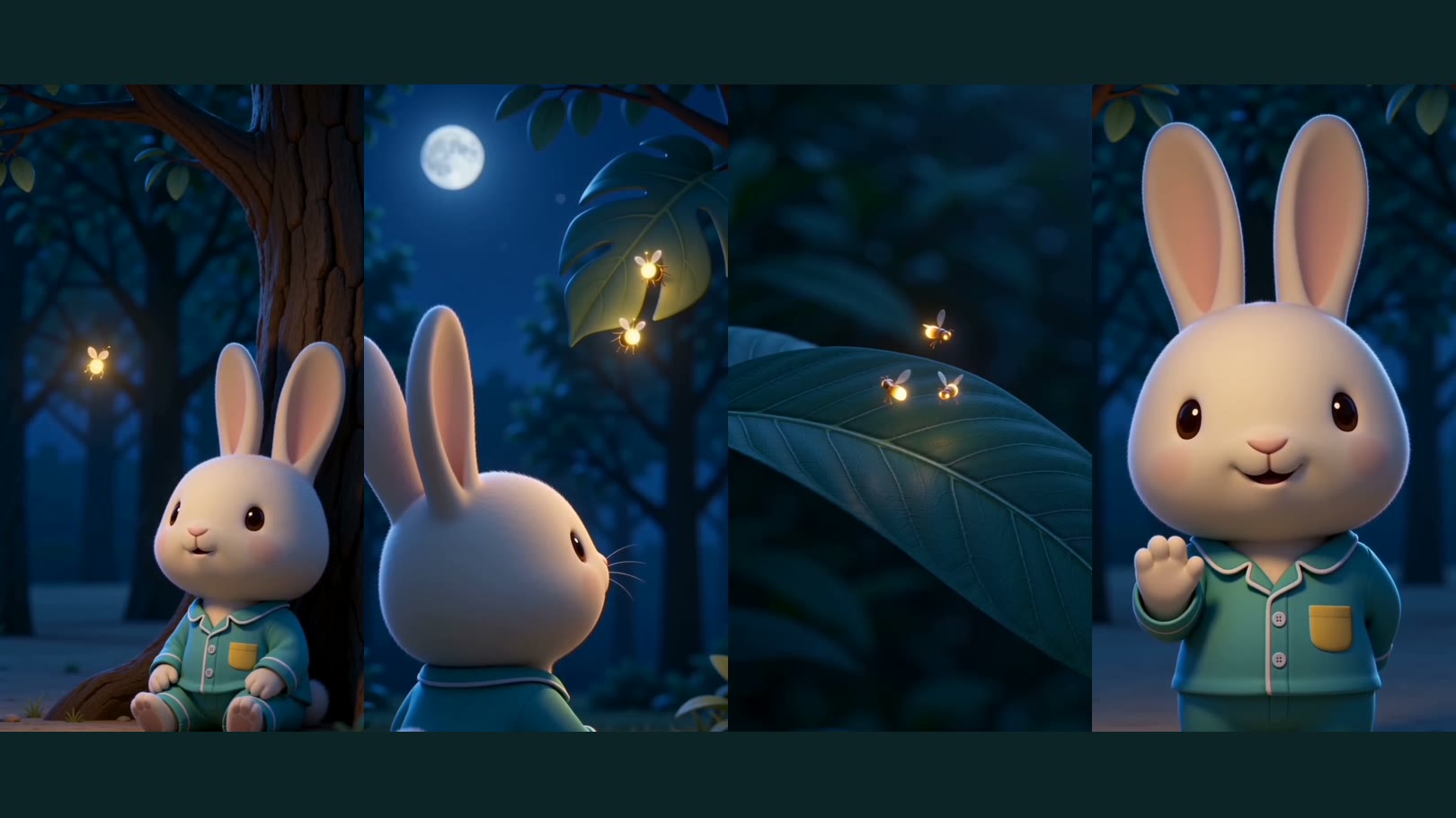
This walkthrough uses Bunny Counts the Fireflies, a 15-second nursery rhyme about counting one, two, and three fireflies before saying goodnight. We start with a finished recording and create four animated scenes around its lyrics. The voice, melody, accompaniment, and tempo stay intact throughout the edit.
1. Hear the Song and Watch the Finished Animation
The original recording
The finished animation, using that same recording
Open or save the finished animation · Hear or save the original recording
Listen for the three counting lines and the final goodnight line, then watch where the picture changes. Each scene makes the count or action in its lyric easy to see. The same recording runs continuously beneath all four scenes.
To follow along with your own song, prepare the audio file, a copy of the lyrics, and a clear character reference image. An existing MP3 or your own vocal recording can be the starting point. Use a recording you made or have permission to use: a public-domain rhyme is free to sing, but someone else’s recording of it may not be. Keep the song on the editing timeline and use Everygen AI to generate the animation clips; this workflow does not require uploading the song to the video model.
2. Turn the Lyrics into a Shot List
Listen to the recording before writing scene prompts. Mark the beginning of each lyric line, then decide what the viewer should already be able to see at that moment. For a counting song, a clear number matters more than a complicated camera move.
These are the lyric timings and shot choices for this recording:
| Lyric and audio time | Planned picture | What the cut needs to achieve |
|---|---|---|
| 0.00–3.65 s: “One little glow by the tree” | Medium-wide view: the rabbit sits beside a tree, with one firefly visible. | Establish the character and location; make the first count easy. |
| 3.65–6.93 s: “Two little glows wink at me” | Over the rabbit’s shoulder: two fireflies separated against leaves. | Switch to a picture where both insects can be counted immediately. |
| 6.93–9.99 s: “Three little glows, soft and bright” | Close-up: three fireflies already visible at the start. | Make the edit introduce “three,” instead of asking the model to add an insect at an exact time. |
| 9.99 s–end: “Bunny waves and says goodnight” | Medium view of the rabbit: a small wave, closed eyes, then a quiet ending. | Finish the action before the recording ends. |
The first sung word starts around 0.03 seconds. The tiny opening lead-in remains part of the soundtrack. We also keep the music after “goodnight,” rather than ending the picture as soon as the final word finishes.
Plan the three-firefly close-up as its own shot. Generate a scene with all three insects already visible, then cut to it when the singer reaches “Three.” This gives you control over when the count changes. The model handles the gentle movement within the shot; the edit places it against the lyric.
At 24 frames per second, a cut can only land on a frame boundary. The final timeline uses these positions:
| Scene | Frames used on the timeline | Actual interval |
|---|---|---|
| One firefly | 0–87 | 0.000–3.667 s |
| Two fireflies | 88–165 | 3.667–6.917 s |
| Three fireflies | 166–239 | 6.917–10.000 s |
| Goodnight | 240–360 | 10.000–15.042 s |
These cuts are within one frame of the measured lyric starts. They describe this recording; listen and mark again for a different performance. The clip lengths returned by the generator are source material, not the timings you must keep in the final video.
3. Create the Animation Clips in Everygen AI
Keep a character reference, then change the composition
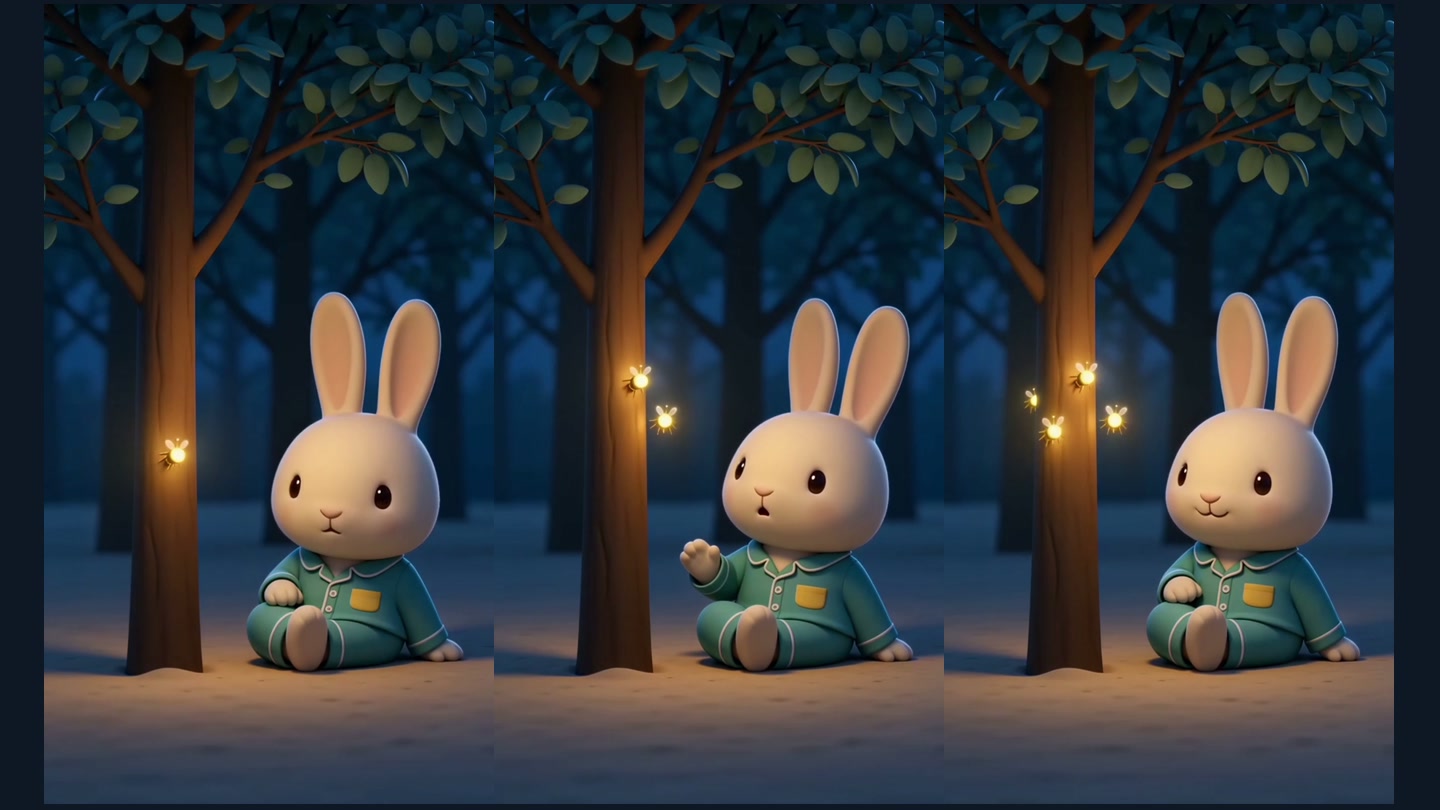
We started with this reference image of the rabbit for the character shots:
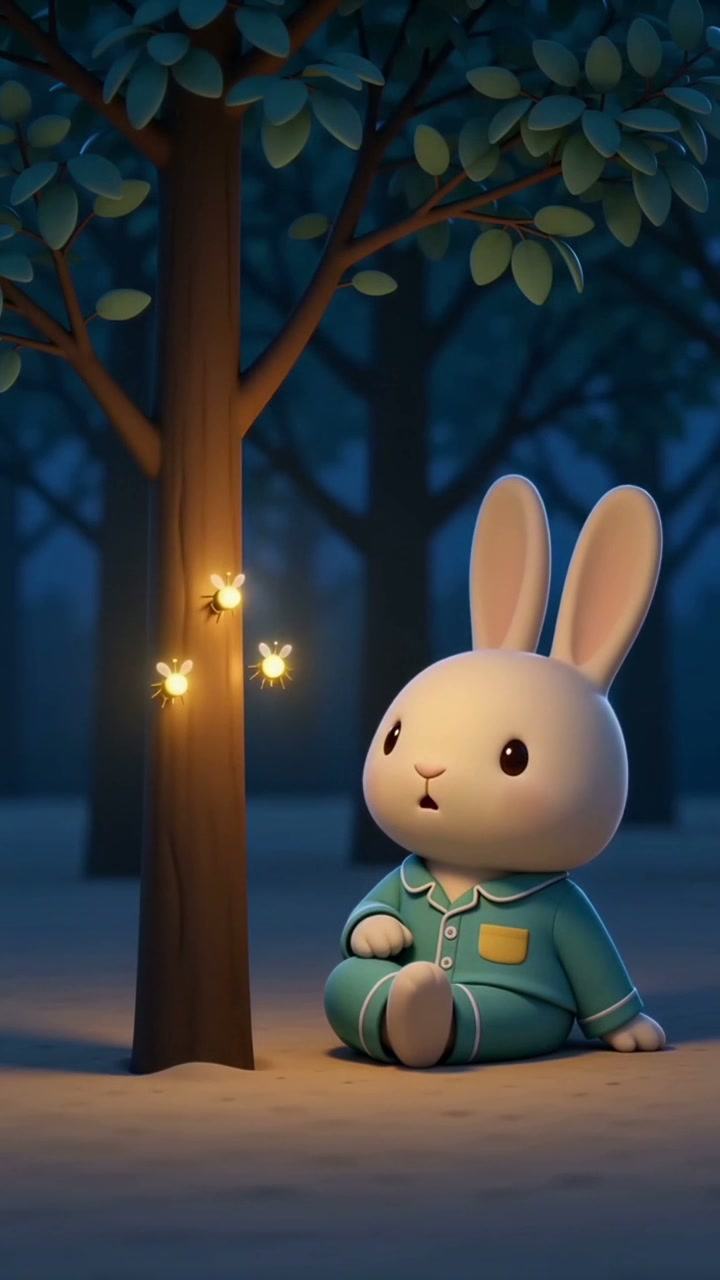
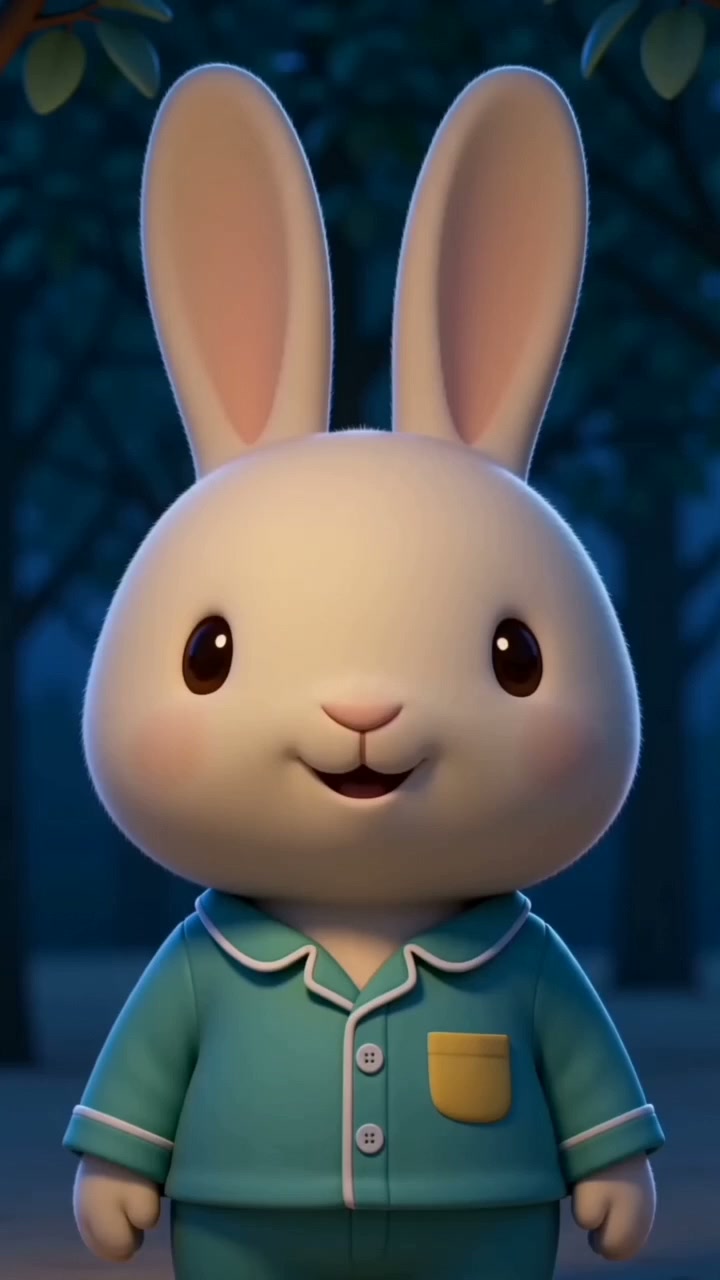
Keep the cream-colored fur, upright ears, round dark eyes, teal pajamas, and single yellow chest pocket. Change the framing, the camera angle, the action, and the firefly count. The reference defines the character; it does not mean each scene has to start from this composition.
Scenes 2 and 4 use that reference, as did our first attempt at scene 1. For the scene 1 revision, we used a frame from the start of scene 4: the same rabbit, with no fireflies in the picture. Section 5 explains why.
In Everygen Studio, choose Image to Video → Reference Images with a model that supports reference inputs. Upload the reference there, not in Start / End Frames, which would also lock in the opening composition. For the firefly-only close-up, switch to Text to Video and use its prompt without a rabbit image.
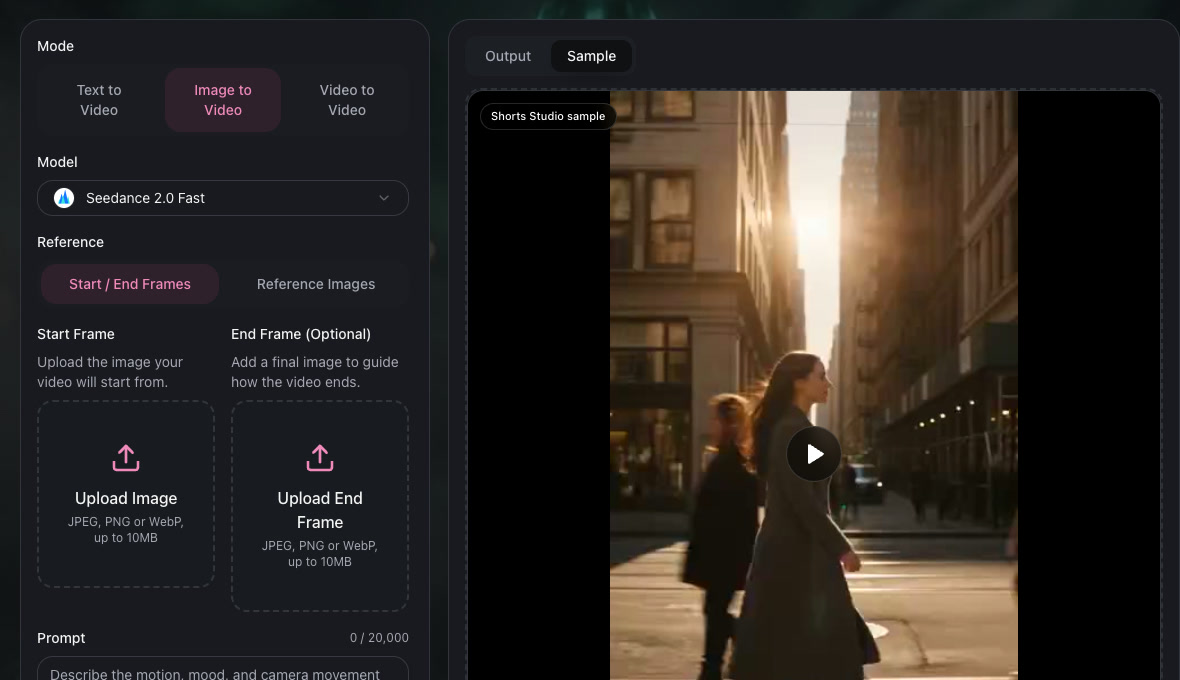
Seedance 2.0 Fast with both reference-input modes. This capture has Start / End Frames selected; switch to Reference Images for the character shots. The Sample panel is the site’s default demo, not output from this tutorial. Available models and controls may change.
The visual direction is a quiet moonlit forest in a soft, rounded 3D style. Each scene prompt keeps that setting and style while specifying its own composition, action, and firefly count. The actual settings were:
| Setting | This example |
|---|---|
| Model | Seedance 2.0 Fast |
| Rabbit scenes | Reference image + text, scenes 1, 2, and 4 |
| Firefly close-up | Text to Video, scene 3 |
| Requested lengths | 5 s each for scenes 1–3; 6 s for scene 4 |
| Frame / resolution | 9:16 / 720p |
| New audio | Off; the existing recording is added during editing |
| Original song uploaded to the model | No |
The prompts below are the exact versions we submitted, so you can copy them, and each player shows the clip that prompt produced. Check the credit estimate in Studio before starting your own run.
Scene 1: establish one firefly
Use image 1 only as the reference for this same cream-colored baby rabbit: long upright ears with pink interiors, round dark eyes, teal buttoned pajamas and exactly one yellow chest pocket. Create a NEW medium-wide composition in the same soft rounded 3D style. The rabbit is small in the lower right of the vertical picture, sitting quietly on the ground beside a tree. A SINGLE golden firefly floats alone to the left of the rabbit. There is exactly ONE insect and exactly ONE glowing point in the entire picture, visible from the first frame through the last frame. The rabbit slowly looks up at this one firefly. Dark teal moonlit forest, no stars, no moon in the frame, no glowing mushrooms, no additional insects, no sparkles or background light dots. Locked camera, gentle motion, one continuous shot, no cuts. No speech, no singing, no text.This is the revised output, using the clean rabbit reference. One firefly stays visible beside the tree. We use its first 88 frames, about 3.67 seconds; the original three-firefly attempt is compared in section 5.
Open Studio and paste scene 1. Copy the prompt above first; the link opens the workspace and does not submit anything on its own.
Scene 2: make two easy to count
Use image 1 as a character and art-style reference, not as a fixed starting frame. Keep the same cream-colored baby rabbit, long upright ears with warm pink interiors, round dark eyes, tiny nose, teal buttoned pajamas with exactly one yellow chest pocket, no hat. Soft rounded 3D animation, quiet moonlit forest, dark teal leaves and warm golden fireflies. Change the camera composition as requested while preserving the character. A close over-the-shoulder shot from behind the rabbit. The back of the rabbit's head, its two long ears and teal shoulder occupy only the lower-left foreground. The rabbit looks toward EXACTLY TWO golden fireflies hovering separately in front of a broad dark teal leaf in the upper-right area. Both insects are visible from the first frame, with a wide gap between them throughout. Keep both clearly in focus and easy to count. The rabbit stays still. No extra insects, no other glowing dots; do not copy the three insects or front-facing composition from the reference. One continuous locked shot, no cuts, no camera zoom, gentle motion. No text, no subtitles, no logos. No dialogue or singing; the finished edit will use an existing song. Vertical 9:16, 720p.The over-shoulder view keeps two separate fireflies against the leaves. We use the first 78 frames, or 3.25 seconds. The rabbit’s ears and teal collar link this view to the surrounding shots.
Scene 3: show three from the first frame
Close-up of exactly three golden fireflies hovering in front of a dark teal leaf. All three are visible from the first frame, spaced far enough apart to count. They drift gently but never overlap or leave the frame. Keep the camera still and the background free of other glowing dots. Soft, rounded 3D animation in a quiet moonlit forest. Arrange the three insects in a loose triangle with clear space between them. The insects have small rounded bodies and wings, each with one soft golden glowing abdomen. No rabbit, no stars, no bokeh lights, no additional insects. No text. One continuous locked shot, no cuts, no camera zoom, gentle motion. No text, no subtitles, no logos. No dialogue or singing; the finished edit will use an existing song. Vertical 9:16, 720p.All three insects are present at the start, but two move close together early in the source clip. The final edit uses source frames 47–120, about 1.958–5.042 seconds, after that close pass. The player shows the full generated clip, including the unused beginning.
Open Studio and paste scene 3. Choose Text to Video for this shot and inspect all three insects at the beginning, middle, and end.
Scene 4: leave time to say goodnight
Use image 1 as a character and art-style reference, not as a fixed starting frame. Keep the same cream-colored baby rabbit, long upright ears with warm pink interiors, round dark eyes, tiny nose, teal buttoned pajamas with exactly one yellow chest pocket, no hat. Soft rounded 3D animation, quiet moonlit forest, dark teal leaves and warm golden fireflies. Change the camera composition as requested while preserving the character. A front-facing medium shot of the rabbit, framed from the waist upwards with both long ears fully inside the frame. Its teal pajamas and single yellow chest pocket are visible. The rabbit smiles, makes one small goodnight wave with one paw during the first three seconds, lowers the paw, then gently closes its eyes and rests completely still for the final two seconds. No lip-sync or talking. The dim forest is softly blurred. No fireflies or glowing dots in this closer framing; keep attention on the goodnight gesture. One continuous locked shot, no cuts, no camera zoom, gentle motion. No text, no subtitles, no logos. No dialogue or singing; the finished edit will use an existing song. Vertical 9:16, 720p.The rabbit raises a paw, lowers it, and closes its eyes. The first 121 frames provide about 5.04 seconds for the last lyric and a quiet ending. The unused final second is spare source material.
A reference image and a precise count are instructions, not guarantees. Inspect every output before choosing a section for the edit; the scene 1 revision in section 5 shows why.
4. Cut the Scenes to the Original Recording
Place the existing recording at the beginning of an audio track and keep it continuous. Put the four picture clips on the video track above it. Use the lyric markers to trim the pictures; leave the audio’s position, speed, and order unchanged. Any video editor with a timeline works for this step.
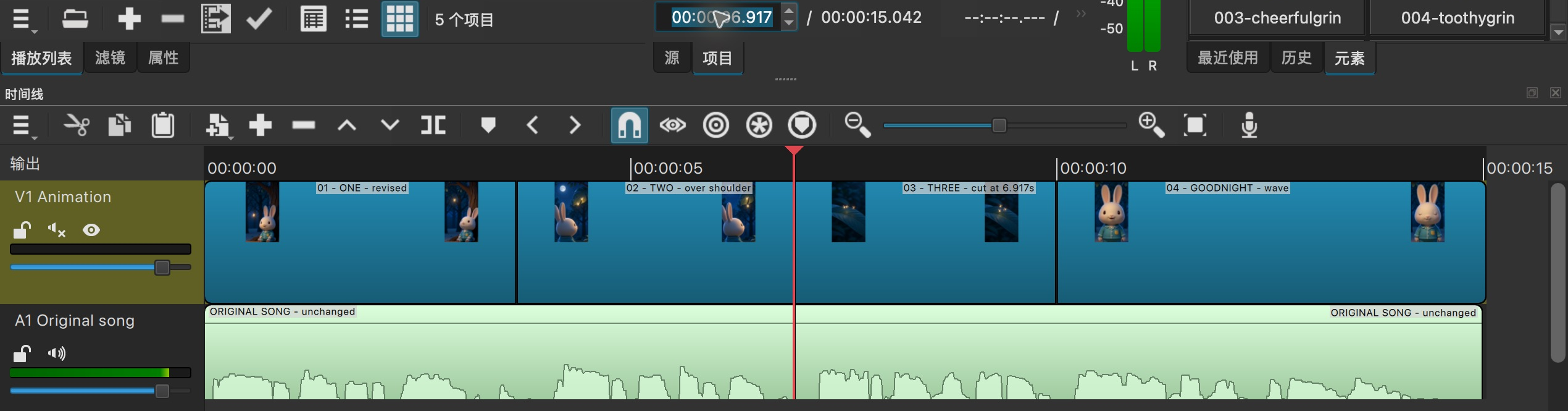
The editing timeline for this example: four video sections above one continuous song track. The playhead marks the cut at 6.917 seconds, while the waveform continues underneath. This step happens in a video editor, after the clips are generated in Everygen AI.
The cut into scene 3 lands at frame 166, about 6.917 seconds. The word “Three” starts around 6.93 seconds, so the new group appears just before the word, within one frame. We use a straight cut: a dissolve would briefly show the two-firefly and three-firefly pictures together, making the count less clear.
Here is the order used to assemble the video:
- Put the original audio at time zero. Do not cut it into one file per lyric.
- Arrange the four selected shots in lyric order. Turn off any sound attached to picture clips; these requests were also configured with audio generation off.
- Trim each shot to the frame ranges in section 2. Choose a source section with readable insects or a complete gesture; do not stretch the song to fill a generated clip.
- Watch across each cut with the song, then check the final wave and the musical ending.
- Export with the original song as the soundtrack. Listen through the finished file to check that the voice, accompaniment, timing, and musical ending are preserved.
Everygen AI generates the animation clips; the edit joins them and lines them up with your song. Because the recording stays one continuous track, the singing and music carry straight through every scene change.
5. What We Changed After the First Edit
The first assembly had the wrong opening count: the lyric said “One,” but the opening shot showed three fireflies. The prompt had asked for one; the reference picture itself contained three. Changing the shot’s duration could not fix a count that was already wrong at the beginning.
We made one new generation for that shot. First, we took a clean frame from the successful goodnight clip, keeping the rabbit and its pajamas but removing the three-firefly reference cue. Then we made the instruction more explicit:
There is exactly ONE insect and exactly ONE glowing point in the entire picture, visible from the first frame through the last frame.
The revised result shows one firefly. We replaced only the opening picture clip and kept its 88-frame slot, so the original song and all later lyric cuts stayed where they were. Both the reference and the wording changed in this retry; one successful result does not tell us which change mattered most. The practical lesson: if a shot depends on a count, keep extra copies of the counted object out of its reference image.
We also tightened scene 3 without generating it again. In the early part of its source, two insects drift close together. Starting that shot at source frame 47 avoids the close pass and still supplies the 74 frames needed before “Bunny.” The cut into “Three” stays at timeline frame 166. A source in-point chooses which pictures you use; a timeline cut chooses when the audience sees them.
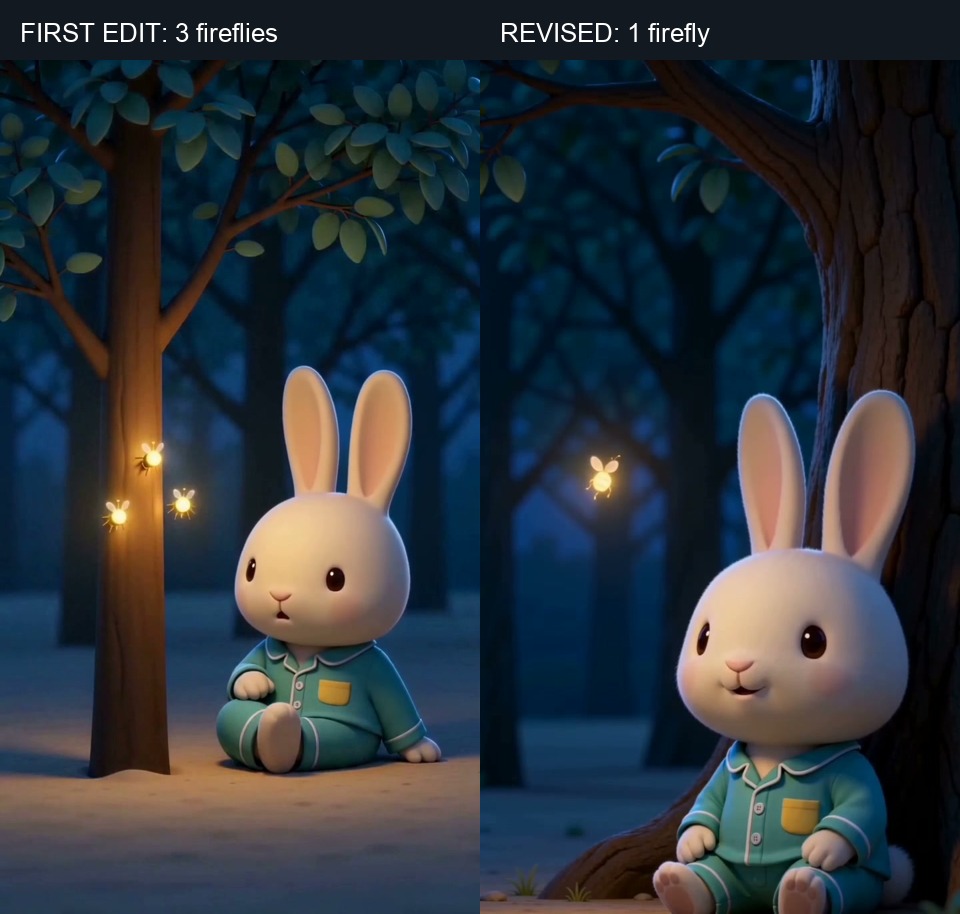
Left: the first edit at 1.00 second, showing three fireflies. Right: the revised edit at the same song time, showing one. The soundtrack and first cut position are unchanged.
For your own project, budget time for a revision or two on top of the first clips, and check the credit estimate for your chosen settings.
Start with one lyric line: mark its beginning, decide what should be visible, and open Everygen AI to create that scene. Check it against the recording before building the remaining shots.