How to Make a Nursery Rhyme with AI: From Lyrics to an Animated Video
Make a nursery rhyme with Everygen AI Music, then create matching animation on the nursery rhyme video page. Includes original lyrics and prompts to adapt.
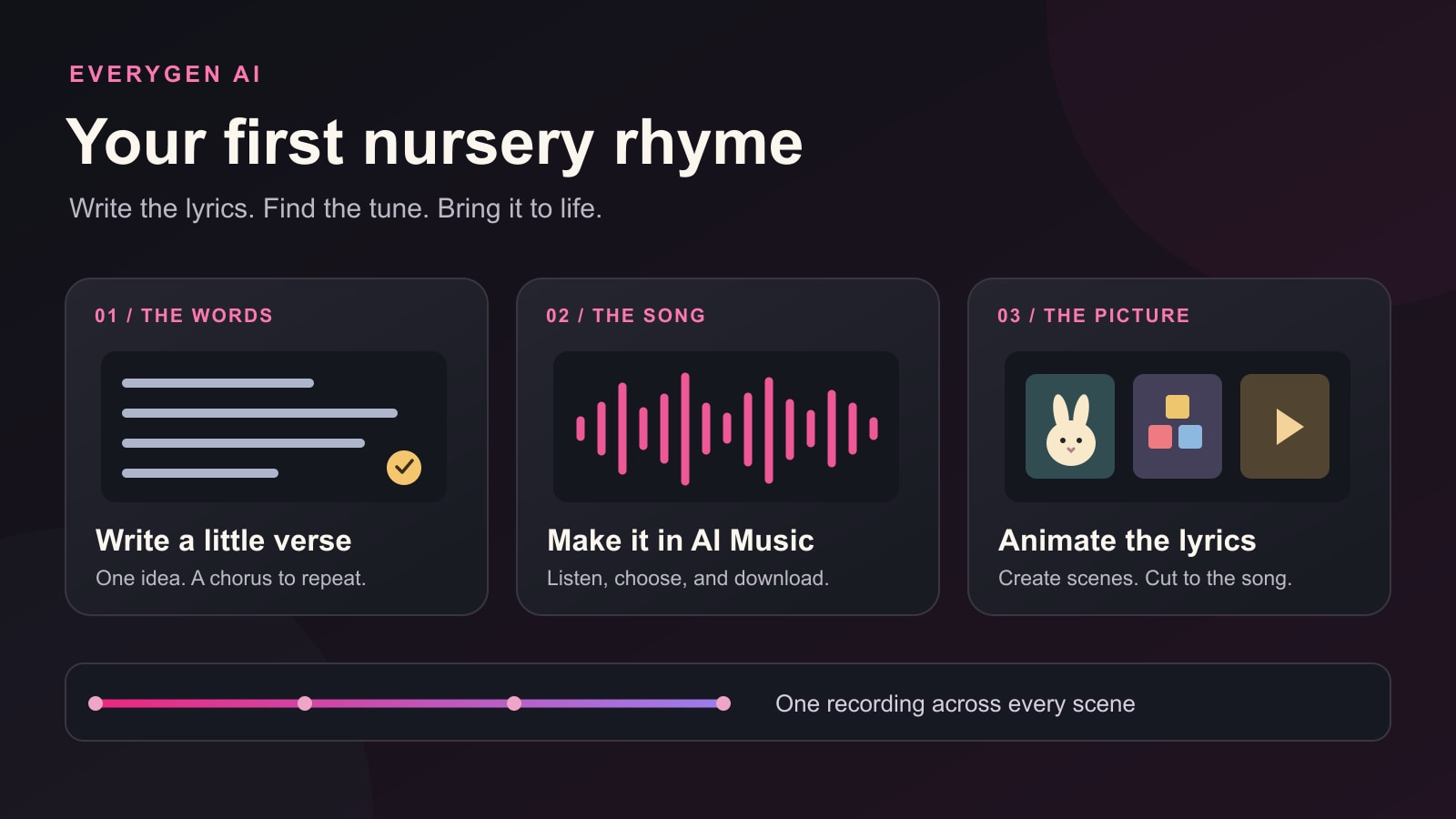
The easiest way to make a nursery rhyme with Everygen AI is to do it in two passes: make the song first, then animate it. Write a few short lines, generate the song in AI Music, and keep the take you like best. Then go to the nursery rhyme video page and make one short scene for each lyric. Finally, cut the scenes to the song in your editor and add captions.
I like doing the song first because it fixes the timing of everything else. Once you have a recording you’re happy with, it becomes the soundtrack for the whole video, and every scene just has to fit around it. AI Music makes the audio, the nursery rhyme page makes the video clips, and you put the two together in your editor.
To show the whole process, we’ll plan a small song called Bunny’s Tidy-Up Song, about putting toys away after playtime. Everything below is a starting draft you can copy and change: the lyrics, the music prompt and the shot list. Your own recording will decide the exact cut points.
1. Pick one idea a child can see and sing
Start with something a child does every day: tidying up, saying goodnight, saying hello to a friend, learning a color. Give the song one main character, and keep them in one place, so every scene feels like part of the same little story.
Here’s the brief we settled on:
| Part | What we picked |
|---|---|
| Theme | Tidying up after playtime |
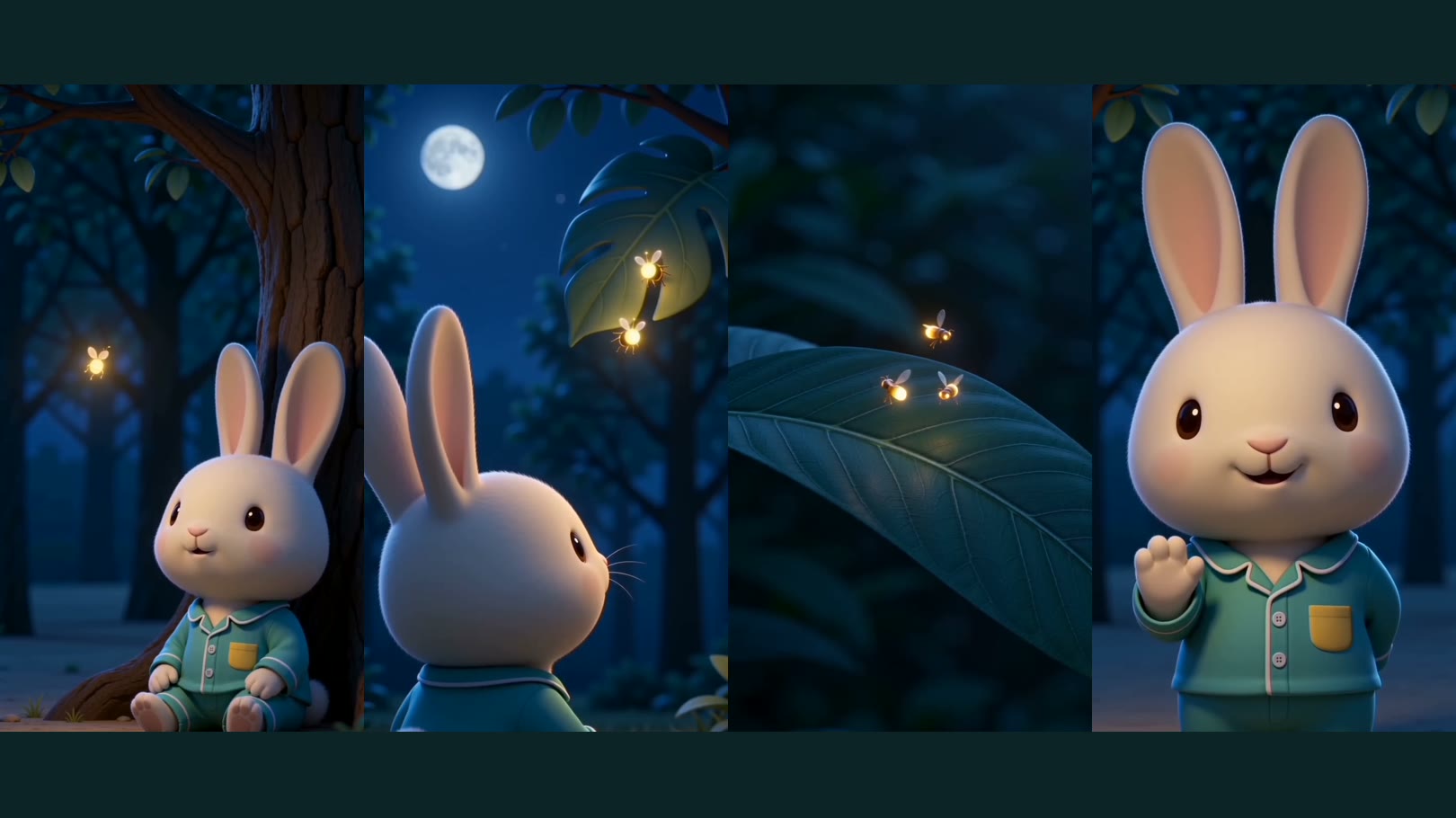
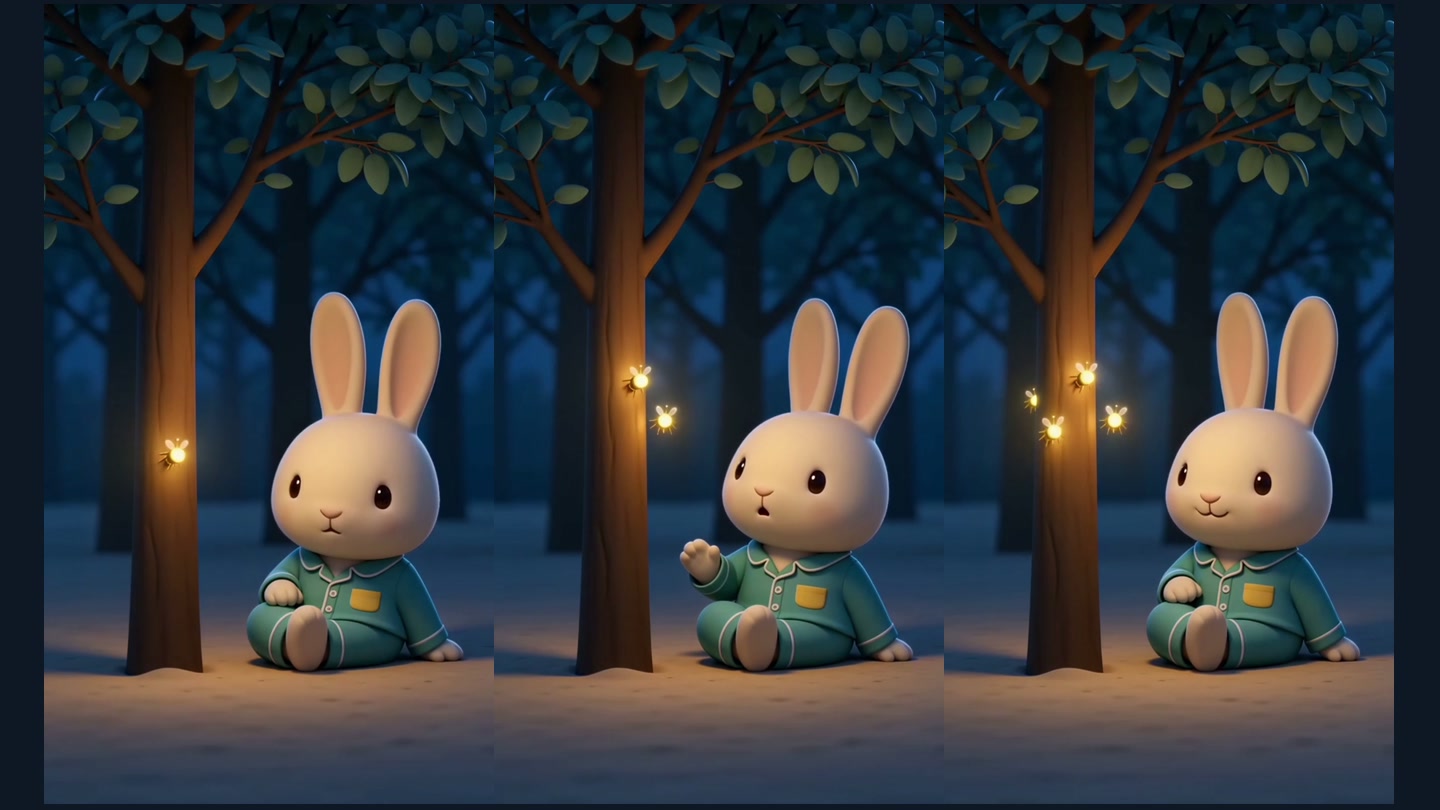
| Character | A cream-colored rabbit in a teal shirt with one yellow pocket |
| Setting | A bright playroom with a low toy basket |
| Musical feel | Warm, cheerful and easy to sing along with |
| Visible action | Put blocks away, pause, then wave goodbye |
| Structure | One short verse and a chorus you can repeat |
Keep each action small. “The rabbit picks up a block and drops it in the basket” is plenty for one scene. If the same prompt asks the rabbit to dance, count, walk into another room and talk to the camera, you’ll spend most of your time fixing things that went wrong.
2. Write the lyrics and the music direction separately
Open Everygen AI Music. It has three separate fields: Track title, Music direction and Lyrics. The words to be sung go in Lyrics. How the song should sound (tempo, instruments, the kind of voice) goes in Music direction. Keeping them apart stops the model from singing your instructions.
Title it Bunny’s Tidy-Up Song, then paste in the lyrics:
[Verse]
Bunny puts the blocks away,
Red and blue from busy play.
One small block, then one more,
Now there's room upon the floor.

[Chorus]
Tidy, tidy, little paws,
Put the toys back, then we pause.
Wave goodbye to playtime fun,
Smile together, tidying's done.
Read it out loud before you generate anything. If a line feels crowded in your mouth, it will sound rushed when it’s sung, so cut a word or two. We kept the chorus repetitive on purpose: “Tidy, tidy” is easy for a child to join in on, and the last line ends on something the rabbit can actually do on screen.
For Music direction, we used:
A cheerful children's nursery rhyme in English, around 96 BPM, with a simple sing-along melody. Warm, clear lead vocals, light acoustic ukulele, soft handclaps and a gentle glockenspiel. Compact verse and catchy chorus, with short pauses between lines. Keep the words easy to hear and the accompaniment light. Very short introduction, no spoken dialogue, no long instrumental break, and a complete gentle ending.The model treats this as a direction, so the tempo you get may not be exactly 96 BPM. That’s fine; the parts that matter most are the short intro, the gaps between lines and a proper ending. If you want the song in another language, rewrite the lyrics in that language too. Changing “in English” in the music direction won’t translate your words.
3. Generate the song and pick your take
Select Vocal song so the result has singing. AI Music currently offers two models:
| Model in Everygen AI Music | What matters for this song |
|---|---|
| MiniMax Music 3 | Sings from your lyrics, has a Maximum duration control, outputs WAV |
| Suno V6 | Vocal song or Instrumental, has a Target duration control, outputs MP3 |
For a first try, I’d stay on MiniMax Music 3 and set the maximum duration to 60 seconds. That’s plenty for one verse and a chorus; the song will usually come back shorter. Suno V6’s target duration is a rough guide too, and Voice preference nudges the voice rather than picking a specific singer.
Tick the rights confirmation, check the credit estimate, and press Generate music. When the result comes back, listen to the whole thing before you start on any animation. If you get more than one version, compare them and pick one.
While you listen, check:
- Can you hear every word? Watch for missing lines or repeats that change the meaning.
- Does the voice sit clearly above the music?
- Is there a little space between lines for the rabbit to do something?
- Does the last line land, and does the music finish rather than just stop?
If the singing feels rushed, shorten the lines or ask for a calmer feel. If the intro drags, say more firmly that the vocals should start right away. When you have a take you like, save it with Download track. From here on, that file is your soundtrack.
4. Set up the scenes on the nursery rhyme page
Open the AI Nursery Rhyme Video Generator and choose I already have a song. You started with lyrics, but now you have a finished recording, so this is the option you want.
This mode writes silent scene prompts meant to sit under a song. Keep the audio file you downloaded for the editing step; the page doesn’t pull it in from AI Music or sync it to the pictures for you.
If you want ideas for a composition or character, look through the nursery rhyme templates. For a tidy-up song, Daily routines is the obvious place to start. Use the previews as inspiration; a starter prompt gives you a head start, not a copy of the preview.
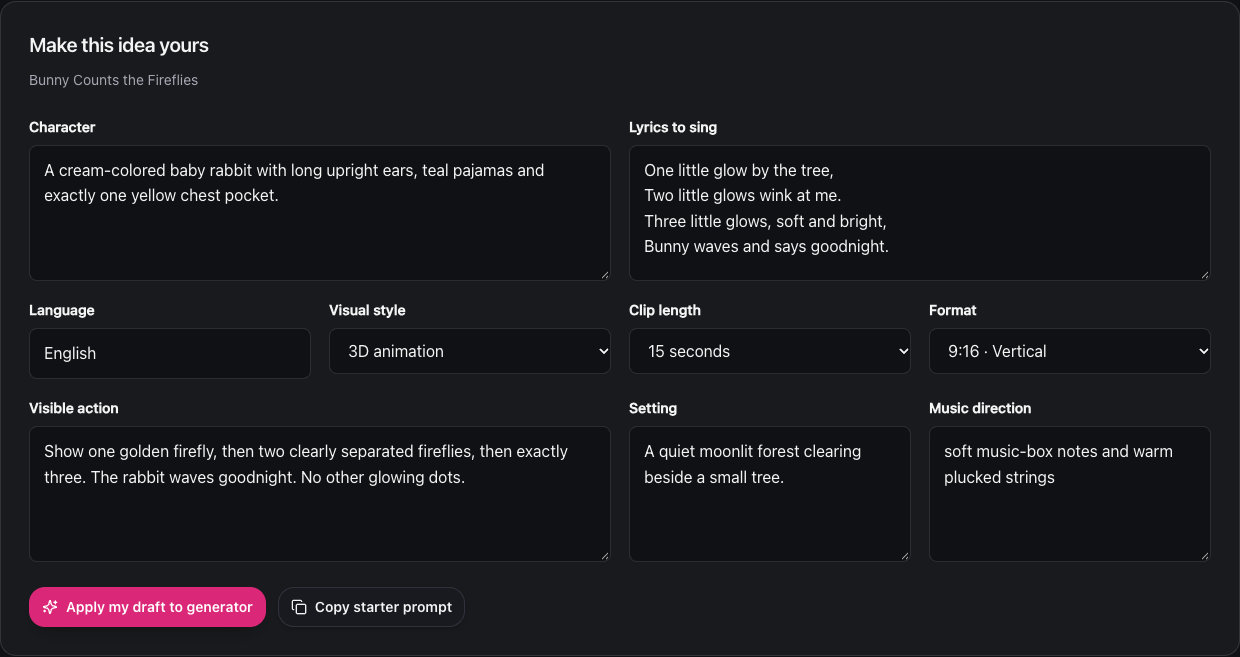
The draft builder, shown here with the page’s built-in bunny example in the lyrics-first mode. Once you choose “I already have a song,” the lyrics field becomes “Lyric this shot accompanies” and Music direction disappears.
Fill it in for one shot at a time. For the first line, we’d write:
| Field | What we’d enter |
|---|---|
| Character | Cream-colored rabbit, upright ears, teal shirt, one yellow chest pocket |
| Lyric this shot accompanies | Bunny puts the blocks away / Red and blue from busy play |
| Setting | Bright playroom, wooden floor, low toy basket beside the rabbit |
| Visible action | The rabbit gently places one red block into the basket |
| Visual style | 3D animation |
| Format | 9:16 for vertical, 16:9 for landscape |
Then press Apply my draft to generator and scroll down to check the prompt, model, duration, format and audio setting it filled in. Edits in the brief don’t carry over until you press Apply, and pressing Apply doesn’t start a generation, so you can look everything over first.
The page offers Text to Video and Image to Video, and the model list changes with the mode. Seedance 2.0 Fast is a good, inexpensive place to start; check the estimate for your settings. If you want the rabbit to look the same in every scene, use Image to Video with a model that accepts a reference image, and reuse the same reference and description for each shot. It still pays to compare the shots side by side.
Because the song already exists, turn audio generation off where the model allows it. If a clip comes back with sound anyway, just mute it in the editor.
5. Turn the lyrics into a shot list
Play your recording and note where each line starts. Those marks are your cut points. Don’t borrow timings from another song or assume every line takes the same number of seconds; singers stretch some words and rush others.
Here’s how we’d plan the tidy-up song:
| Lyric cue | Picture | What to check in the clip |
|---|---|---|
| “Bunny puts the blocks away…” | Medium shot of the rabbit beside the basket | One clear placing action; shirt and pocket stay the same |
| “One small block, then one more…” | Closer on the paws, basket and floor | Blocks keep their shape; you can see them go in |
| “Tidy, tidy, little paws…” | Wider shot as the rabbit finishes and pauses | A calm pose that can hold for the whole line |
| “Wave goodbye to playtime fun…” | Medium shot of the rabbit smiling and waving | The wave finishes, then the rabbit stays still |
Think of these as four ideas, not four equal-length slots. The brief suggests short clip lengths, and the model you pick decides which durations you can actually choose. A long line might need two clips; for a short one you might only use part of a clip.
A prompt for the first shot could look like this:
Soft rounded 3D nursery-rhyme animation. A cream-colored rabbit with upright ears wears a teal shirt with one yellow chest pocket. Medium shot in a bright playroom, with a low toy basket beside the rabbit. The rabbit slowly places one red block into the basket, then looks up with a small smile. Keep the face, ears and clothes consistent. Locked camera, gentle motion, simple background. No text, speech, singing, music or sound effects. This silent shot will accompany an existing song during editing.Watch the clip all the way through. If a paw or a block warps partway, you can use just the clean part, simplify the action, or regenerate. Get this first shot right before making the other three; it tells you early whether your character description holds up.
6. Cut everything to one continuous song
Drop the song onto a single audio track in your editor and lay the clips above it. Trim the pictures to your lyric marks, and leave the song alone: don’t move it, cut it up or change its speed.
For example, when “One small block” starts, cut to the close-up of the basket. Start that clip from the moment the block is already in view, not from wherever the clip happens to begin. For each clip you’re making two choices: which part of it to use, and where it goes in the song.
Leave enough picture at the end for the last note to ring out. Add lyric captions once the cuts are final, and check them against the actual singing rather than the lyric sheet. Keep captions clear of the rabbit’s face, its paws and the blocks it’s moving.
Before you call it done, watch the export twice: once with sound, once muted. With sound, you’re checking words, cut timing and the ending. Muted, you’re checking that the pictures alone still tell the little story.
Common questions
Can I generate the singing and the animation at the same time?
Yes. On the nursery rhyme page, I have lyrics or an idea writes a prompt for a short sung scene. Pick a video model that supports audio and see what you get. The AI Music route in this guide is better when you want to lock in one song first and carry it across several scenes.
Can I make just the song?
Yes. Stop after the AI Music step and download your take. The animation is optional.
Can I make a longer nursery rhyme video?
Yes, by stringing together more clips over the same song. A longer song doesn’t make each video clip longer; the model’s per-clip limit stays the same, so plan more scenes instead.
How many credits will it take?
The song and the video clips are charged separately, and the estimate depends on the model and settings you pick. Check it before each generation and leave some room for redoing a shot or two. There isn’t one fixed total that fits every project.
Start with a short verse you can read aloud without stumbling. Make the song, pick your take, then give each line one clear action. You can begin either half of the project in Everygen AI.